File manager
Why this matters
Every immigration file generates files: scanned passports, proof of funds, employment offer letters, signed IMM forms, IRCC PDFs. The ImmCase File manager is where all those files live, organized in a folder structure parallel to the applicant and case structure. It's not Dropbox — it's something simpler and more connected to the CRM.
Get to the file manager
Three paths:
- Sidebar → Files — global view of the full tree.
- From an applicant → Files tab — you see only that applicant's folder.
- From a case → Files tab — you see only that case's folder.
Most of the time, the second or third is most useful — straight to the client's context.
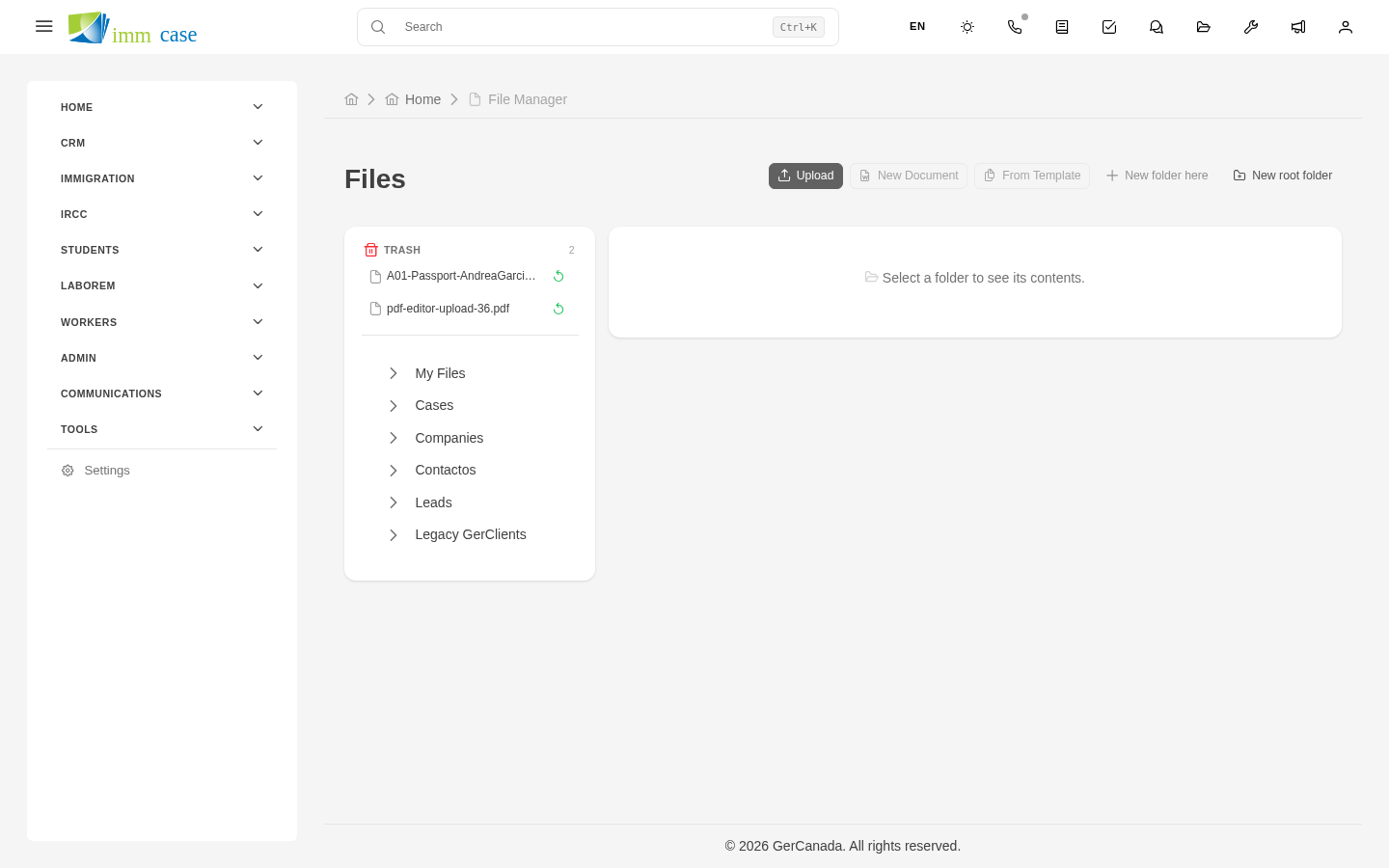
Upload files
Three paths:
- Drag and drop — from your desktop, drag files into the upload zone. Works with several files at once.
- Upload button — opens the system file picker.
- From an email — when you receive an email with attachments, Save to applicant files button (see Email client).
ImmCase shows upload progress. If the file is very large, it warns you.
File types and sizes
ImmCase accepts any file type: PDF, JPG, PNG, DOCX, XLSX, ZIP, etc. The most common in a practice:
- PDF — IMM forms, IRCC letters, signed documents.
- JPG / PNG — passport photos, visa photos, screenshots.
- DOCX — editable drafts.
Max size per file: typically 50 MB. If you need to upload something larger, split it or ask your administrator (some formats like video are stored differently).
Organize folders
Inside the tree you can:
- Create folders — New folder button → name.
- Move files — drag between folders, or file menu → Move to.
- Rename — right-click → Rename.
- Delete — right-click → Delete (soft-delete, restorable by an administrator).
For the automatic folder structure ImmCase maintains for every applicant and case, see Auto-folders.
View and download
- Preview: click on a file → opens in a preview (PDFs, images, Office documents). Don't download if you just want a glance.
- Open and edit (Office): click Edit with OnlyOffice — opens the editor in the browser. See OnlyOffice.
- Download: file menu → Download.
Share files with clients
ImmCase doesn't expose files directly to the client from the file manager — you control that by sending the file by email or by client portal link (if your practice uses the portal). The manager is internal.
If you need to send a file to the client: open the file → Send by email → automatic attachment to the new email.
Search for files
- By name: search field above the manager.
- By content (PDF, DOCX): some formats are indexed — type words from inside the document. Ask your administrator if it's enabled.
- By applicant or case: ImmCase's global search finds them.
Watch out for
- Don't save the same file in two different folders. It causes confusion when one is updated and the other isn't. If you need it accessible from two places, use the auto-folder system that connects applicant and related cases.
- Don't upload personal data without need. The file manager keeps what you upload — and that's accessible to the whole team with permission. Don't upload bank card scans, passwords, or data not relevant to the case.
- Deleting a file is soft-delete, but restoration is not forever. An administrator can restore in the first 30 days (typical). After that, the file is purged permanently.
Where to next
- Auto-folders — the structure ImmCase maintains without you having to do anything.
- OnlyOffice — edit Word/Excel/PDF documents directly in the browser.