Users
Why this matters
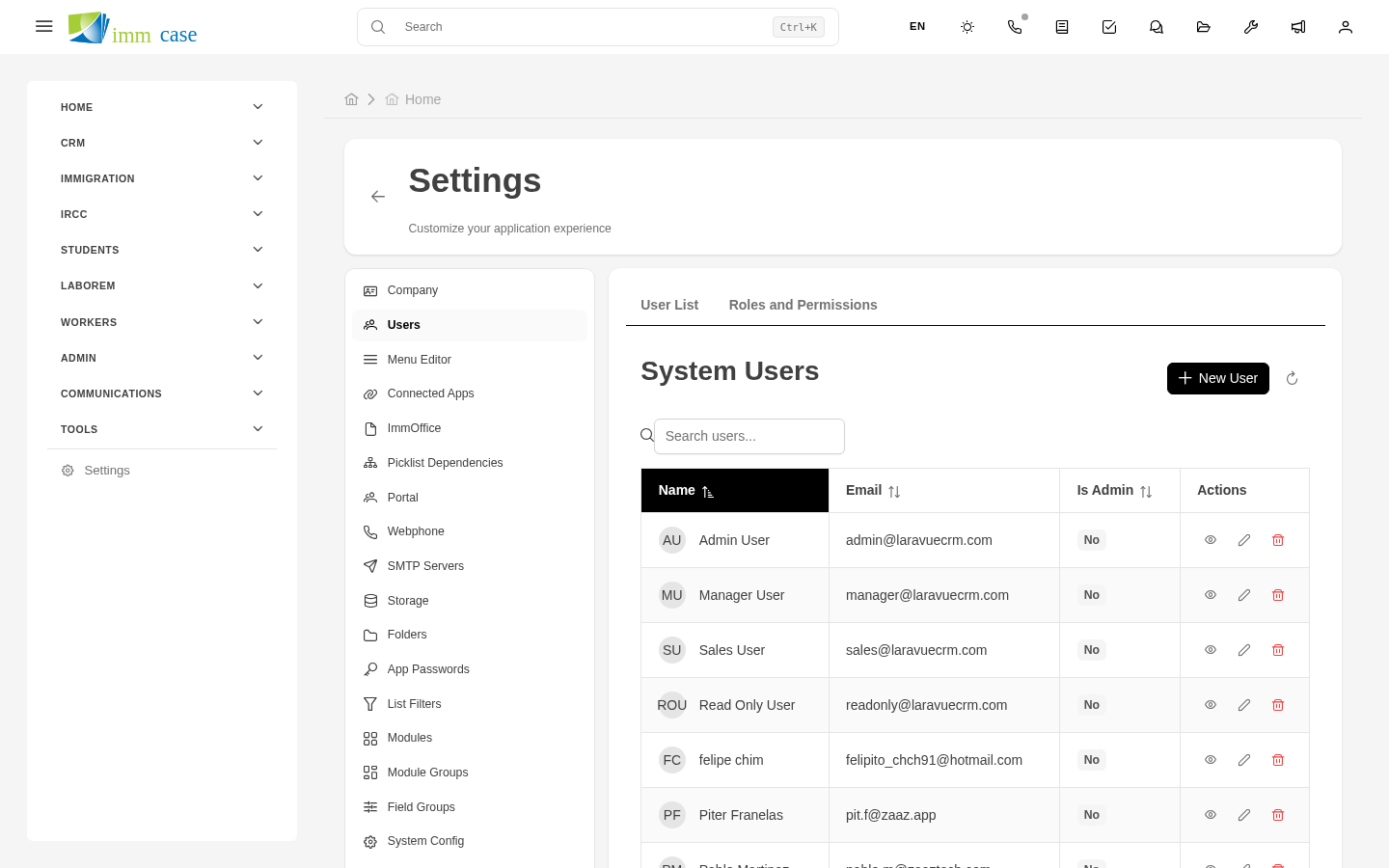
Every person who uses ImmCase at your practice needs a user account: consultants, paralegals, administrators, accountants, RCICs. The Users module is where you onboard them, deactivate them when they leave, and resolve access problems. As an administrator, this is one of the modules you'll touch most.
Create a new user
- Sidebar → Settings → Users → Create.
- Fill in:
- Full name.
- Email — what they'll use to sign in. Must be unique in the practice.
- Initial password — the system can generate a random one or you define it. The user will have to change it on first sign-in (recommended).
- Primary Role (RCIC Consultant, Paralegal, Administrator, etc.).
- Preferred language and Time zone.
- (Optional) Assign additional Profiles for specific permissions. More in Profiles.
- Save.
ImmCase sends a welcome email with sign-in instructions.
Deactivate (don't delete) a user
When someone leaves the practice:
- Open the user → Edit.
- Change Status to Inactive.
- Save.
The user can't sign in, but all their records (assigned cases, comments, sent emails) are preserved. This matters for audit — a case that person handled still shows the history of who did what.
Don't delete a user. Deleting breaks relationships (orphan cases, comments without an author). Deactivating is correct.
Reassign an inactive user's work
Before deactivating, reassign their open cases:
- Open the user who's leaving → Assigned cases tab.
- Mass select → Reassign to → another consultant.
- Apply.
This prevents cases from being left without an owner when the person leaves.
Force a password change
If a user forgot their password or you need them to change it for security:
- Open the user → actions menu → Reset password.
- Pick between:
- Generate random password and send by email.
- Send recovery link to the user's email.
- Define temporary password the user must change on first sign-in.
Force sign-out of sessions
If the user forgot to sign out on a public computer, or you suspect their account was compromised:
- Open the user → menu → Sign out all sessions.
- Confirm.
The user is disconnected on every device. They'll have to sign in again.
Assign role and profiles
Every user has:
- One role (the baseline) — defines their general level (Consultant, Admin, etc.).
- Zero or more profiles — add specific permissions. For example, a "Collections profile" adds invoice and payment permissions without changing the main role.
More detail in Roles and Profiles.
Watch out for
- Don't reuse emails. If a person leaves and months later another joins, don't give them the same email. Each email is a distinct user in history. Create a new one.
- Don't change an existing user's email "to fix it". If you made a mistake on onboarding, deactivate and create a new one with the correct email. Changing the email orphans the old one in notifications, sent emails, etc.
- Super Admins are a special category. Only assign that role to the 1-2 people who really need it (typically a founding partner and an IT lead). Super Admin bypasses every permission — a Super Admin mistake can wipe out critical configuration.