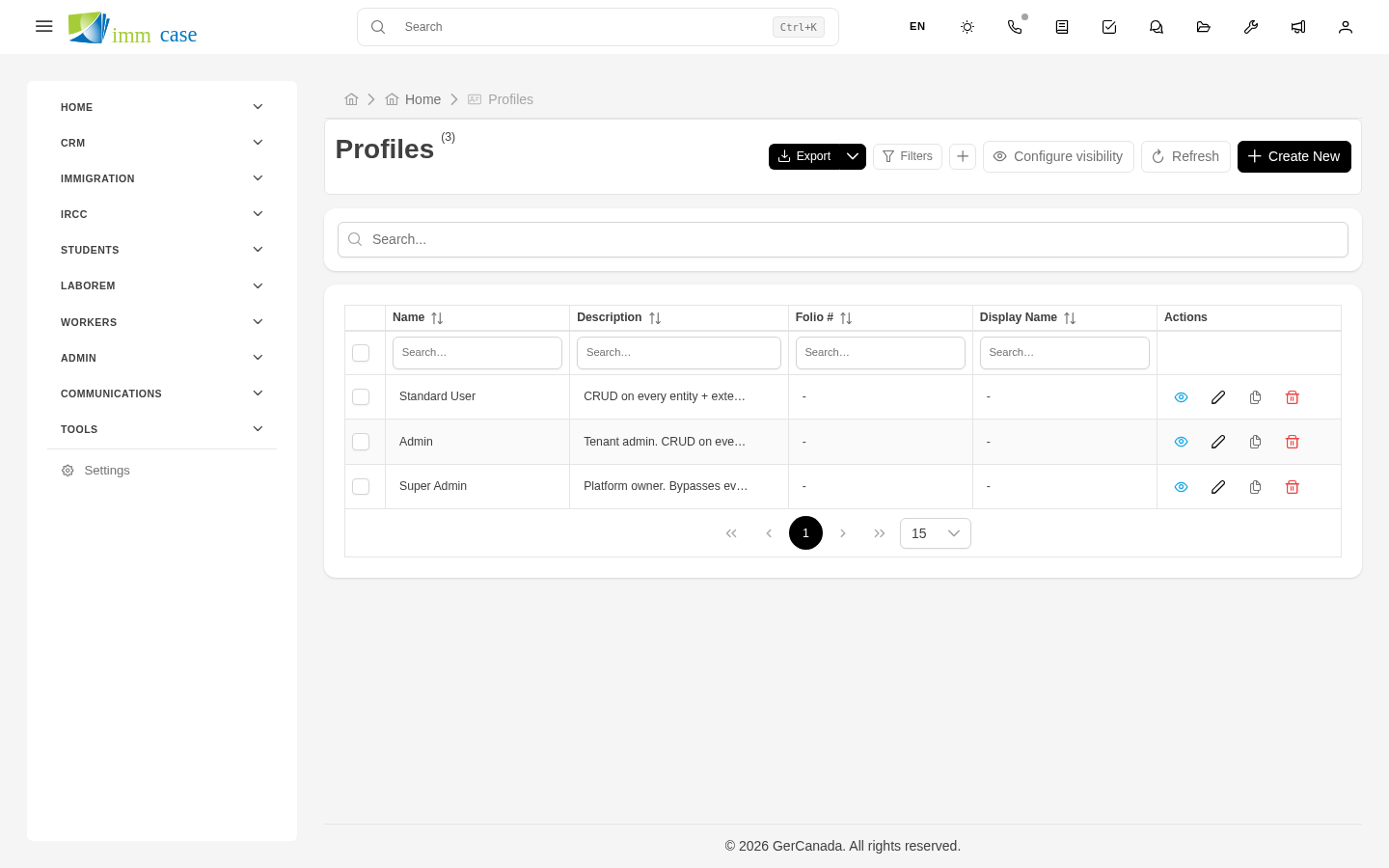
Profiles
Why this matters
A profile is a set of granular permissions that stacks on top of the user's role. While the role defines "what type of user you are" (Consultant, Admin), the profile defines "what specific things you can do" (see invoices, edit email templates, export reports).
The big advantage: a user can have several profiles. For example, one person can be "RCIC Consultant" (role) + "Collections" (profile to see invoices and record payments) + "Templates" (profile to create email templates). Without creating a new role for every combination.
Permission structure
Each permission in a profile has three dimensions:
- Module — which module it applies to (Applicants, Cases, Quotes, etc.).
- Action — what can be done (view, create, edit, delete).
- Field optional — a profile can restrict permissions at the field level (for example, "sees the case but not the Fees field").
Create a profile
- Sidebar → Settings → Profiles → Create.
- Fill in:
- Name of the profile ("Collections", "Template access", "External audit").
- Short description.
- In the Module permissions section, for each module, check:
- View (
view) - Create (
create) - Edit (
edit) - Delete (
delete) - In Field permissions (optional), restrict specific fields:
- Invisible — the user doesn't see the field at all.
- Read-only — sees it but can't edit it.
- Write — full access.
- Save.
Assign a profile to a user
- Open the user → Profiles tab.
- Add profile → pick from the catalog.
- Save.
The user receives the profile's permissions on top of their primary role's. Permissions stack — if role or profile grant access, the user has it.
Assign a profile to a role
Alternatively, a profile can be assigned to an entire role (every user with that role gets the profile automatically):
- Open the role → Profiles tab.
- Add profile.
Useful when many people need the same additional permission. For example, adding the "Reports" profile to the "Manager" role grants reports to every manager in one change.
Common profile patterns
- Collections — permissions on Invoices, Payments, Collections reports.
- Mass communication — permissions to send emails to multiple applicants at once.
- Technical configuration — permissions on Templates, Workflows, Custom fields (typically only for technical admins).
- Read-only — every module in View mode.
- Audit — View closed cases, export reports, no edit permissions.
Combine role + several profiles
Realistic example of a user:
User: María Ramírez
Role: Senior RCIC Consultant
Profiles:
  - Collections (can record payments)
  - Templates (can create email templates)
  - Reports (can create custom reports)
Each profile adds permissions without touching the role. If later she needs to lose Templates, remove it from her user without affecting anything else.
Watch out for
- Conflicting permissions between role and profile — the more permissive wins. If the role forbids viewing a field but the profile allows it, the user sees it. Permissions stack, they don't subtract.
- Orphan profiles. If you create a profile and never assign it, it takes up space. Periodically, review the profile list and delete ones no longer used.
- Changes to profiles affect EVERYONE who has them. If a profile shared by 30 users loses a permission, all 30 lose it instantly. Announce before changing.
Where to next
- Modules — which modules you can grant/restrict.
- Field visibilities — control which fields users see in which context.