Navigating modules
Why this matters
All day-to-day work in ImmCase happens inside a module: applicants, cases, companies, quotes, IMM forms, calendar, files. Each module is a collection of records of the same type. Learning once how to navigate a module covers you for the 30 or 40 modules your practice uses — they all work the same way.
What a module is
A module is like a table: it has many records (rows) and each record has several fields (columns). For example, the Applicants module has one record per person, with fields like name, email, date of birth, country of origin.
You reach modules from the sidebar. Click a module and you land on its list view.
The three views of a module
Every module has three distinct views depending on what you're doing:
| View | When you see it | What it's for |
|---|---|---|
| List | Entering a module from the sidebar | Seeing many records at once |
| Detail | Clicking on a record | Seeing all the information about one record |
| Form | Clicking Create or Edit | Creating a new record or modifying an existing one |
The list view
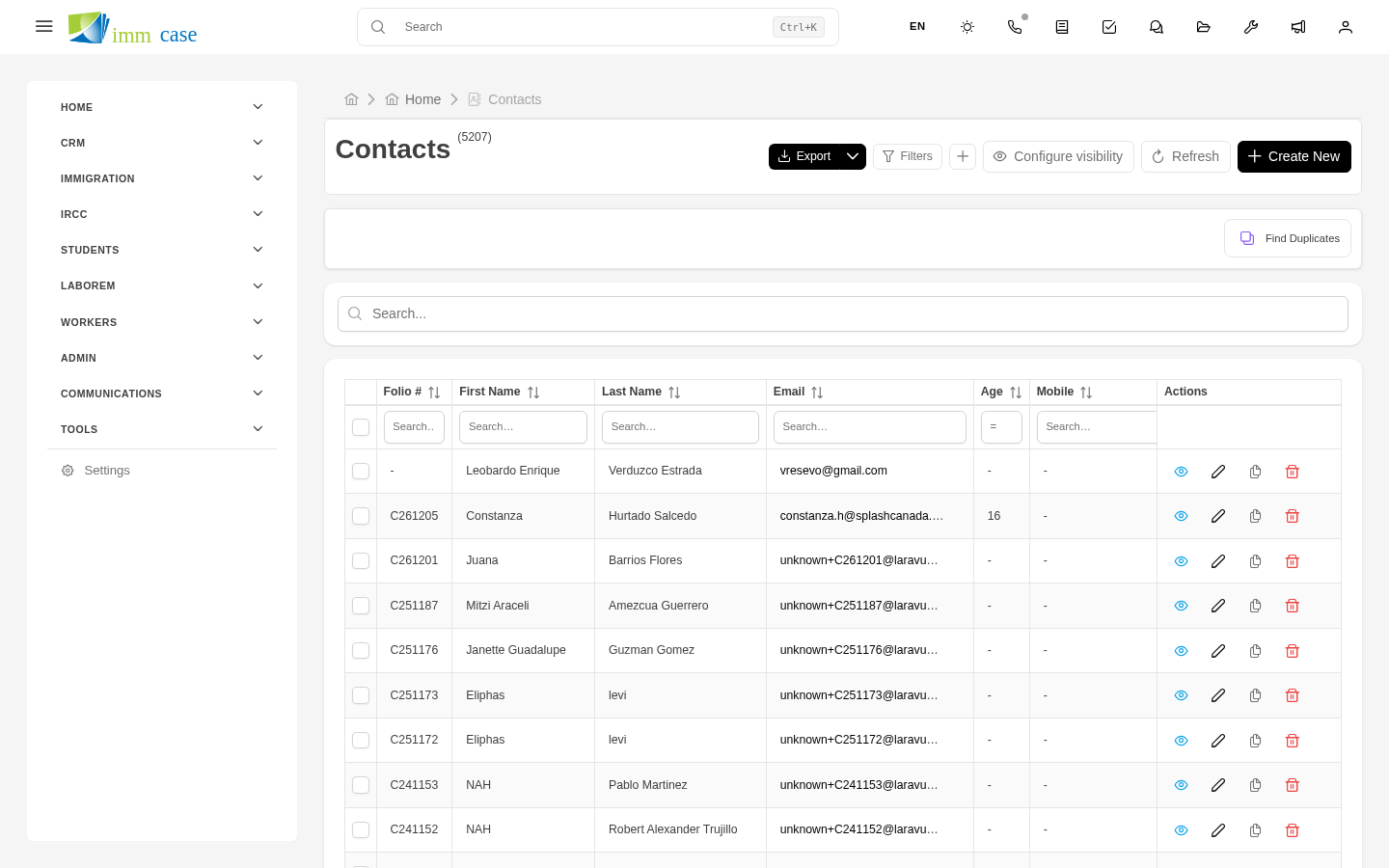
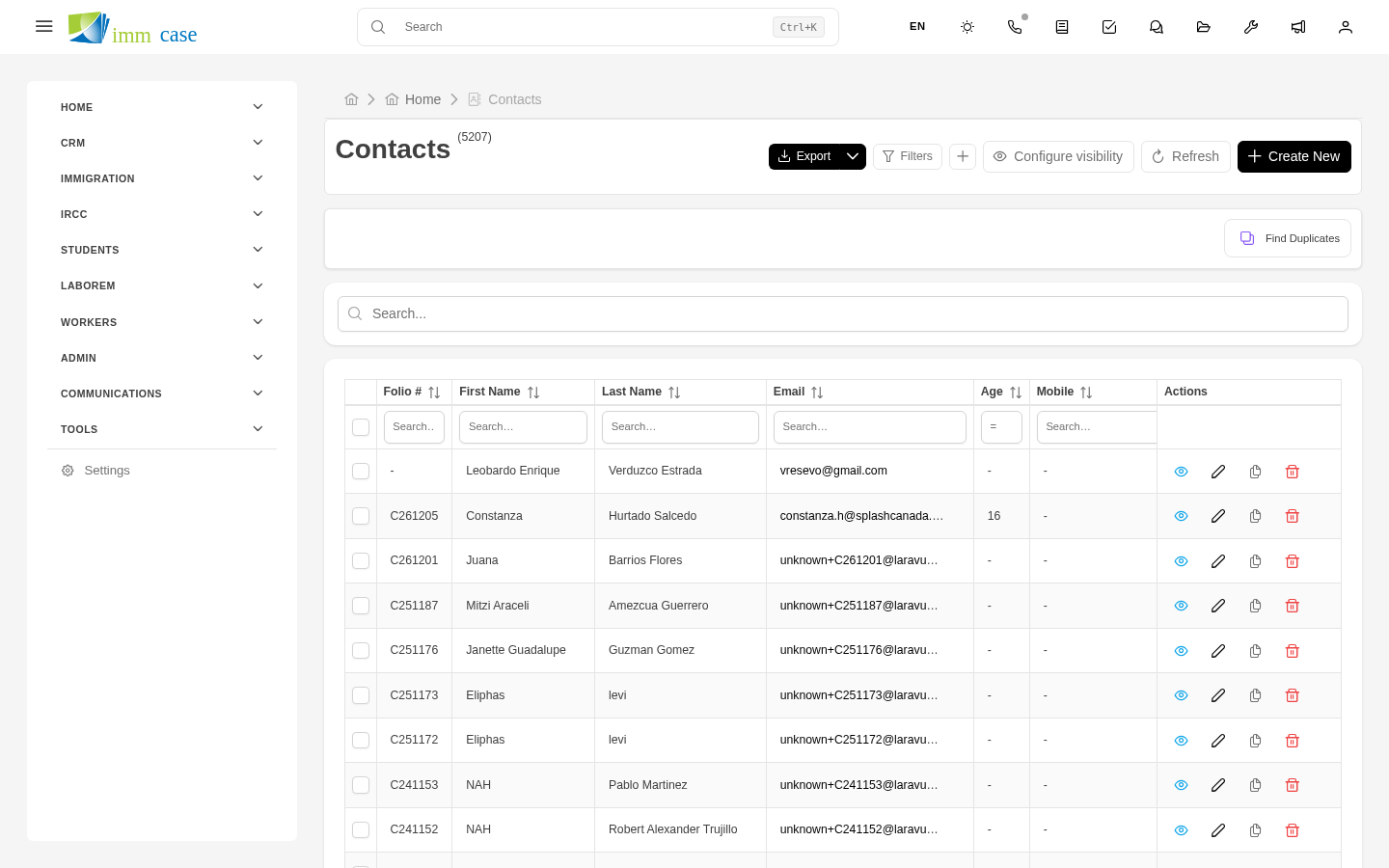
This is the screen you land on when you click a module name in the sidebar. It shows every record you have permission to see. Above the list are three important controls:
- Search and filters — search field plus saved-filter button. Details in Search and filters.
- Create button (upper-right corner) — opens the form in create mode.
- View toggle (table / cards / kanban) — switches how records are displayed.
The list in table mode is the most common — one row per record, configurable columns, sortable by column. In cards mode each record is a visual card with photo and key fields. In kanban mode records are grouped into columns by a status field (e.g. cases by stage: new / in progress / closed), and you can drag between columns to change the status.
Not every module has all three modes. Your administrator decides which are available per module.
The detail view
Clicking any record in the list takes you to its detail. You see all the record's information organized into sections (personal data, address, case data, etc.), plus a side column with summary and quick actions.
Below the data are related tabs — everything connected to this record. For example, on an applicant's detail you find tabs for:
- Their open cases
- Their archived documents
- Their sent/received emails
- Internal team comments
- Their activity timeline (who changed what)
Each tab is itself a list of the related module, filtered to the context of the parent record.
The form view
Appears when you create or edit. Fields are grouped into sections so the form doesn't feel overwhelming. Required fields are marked with a red asterisk (*).
At the bottom of the form are two buttons: Save (applies the changes) and Cancel (discards and returns to the previous screen). Some long forms also offer Save and continue editing, handy when you're going to fill out several tabs.
How to move between views
- List → Detail: click any row/card/record.
- Detail → List: Back button in the upper-left, or click the module in the sidebar.
- List → Form (create): Create button in the upper-right.
- Detail → Form (edit): Edit button in the upper-right of the detail.
- Form → Detail: Save button.
- Form → List: Cancel or the back arrow.
Watch out for
- Not everything you see in the list is editable. Permissions apply per field. You may see an applicant's name, but when you open the detail some fields appear grayed out (read-only) because your role can't modify them.
- Kanban mode changes status on drop. If you drag a case from "In progress" to "Closed", the change applies immediately — there's no confirmation step. If it was a mistake, open the case and move it back manually.
- Not every module has a separate detail screen. Small lookup modules (taxes, currencies) are edited directly from the list or a modal, without a dedicated detail screen.
- Deleted records don't disappear forever right away. ImmCase uses soft-delete: the record is hidden, but an administrator can restore it from the trash for a limited time.
Where to next
- Search and filters — find specific records quickly.
- Applicants — start using the first day-to-day module.