Search and filters
Why this matters
In a busy practice, applicants and cases pile up fast. Six months in, your database holds hundreds or thousands of records and scrolling through lists stops being useful. ImmCase offers three different ways to find what you're looking for: global search (a shortcut from any screen), the module search (fast, inside a list), and saved filters (complex criteria you reuse).
Knowing which to use when saves you minutes every day.
Global search — from anywhere
It's the magnifying glass in the top bar. Use it to find a record when you don't even know which module it's in, or when you want to jump to something fast without navigating the menu.
How to use it
- Click the magnifying glass icon in the top bar (or use the keyboard shortcut if your administrator enabled it).
- A panel opens with a text field and a list of modules included in the search.
- Type at least 2 characters. Results appear instantly, grouped by module.
- Click any result to open its detail.
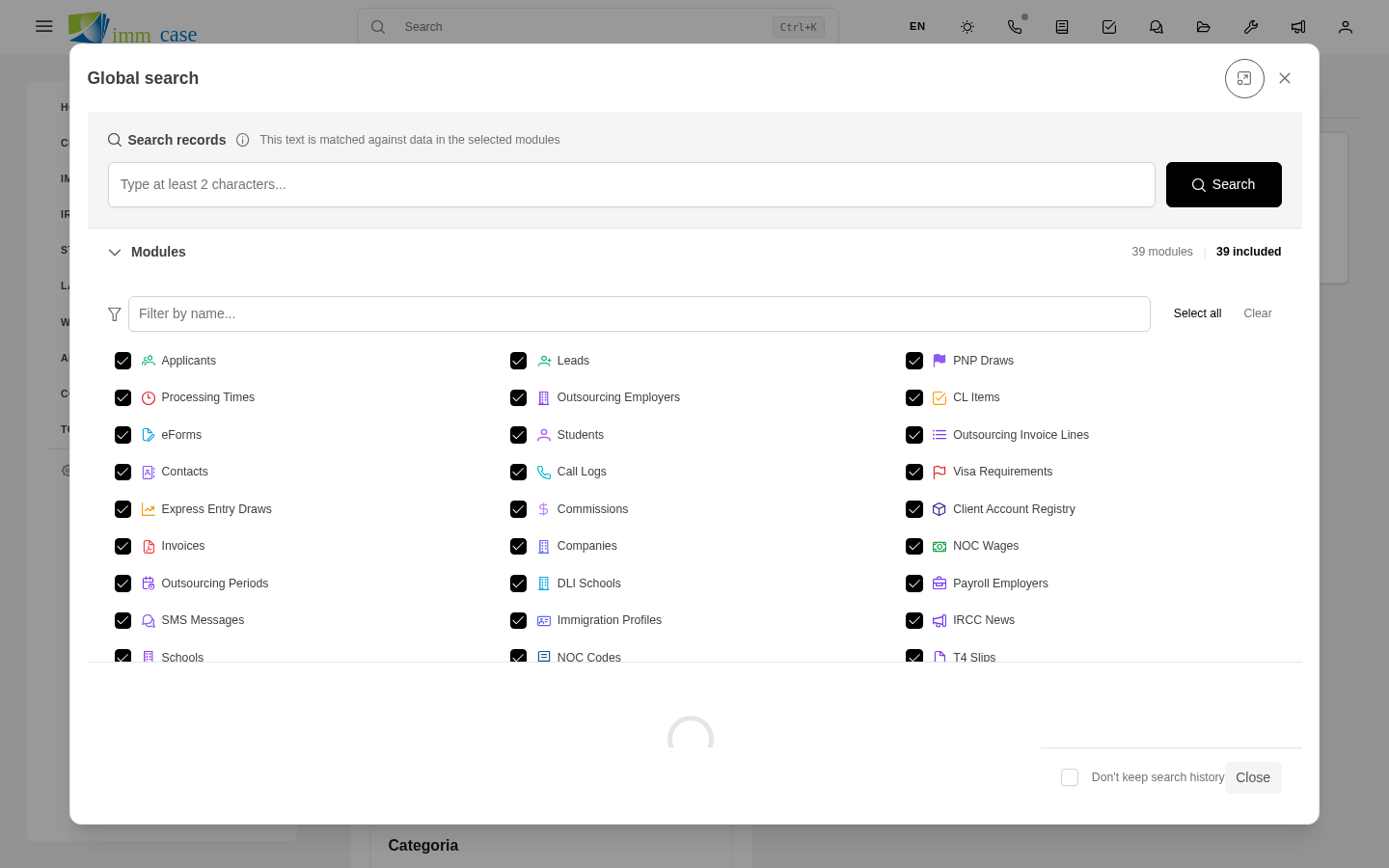
Filter which modules are searched
By default, global search looks across every module you have access to. If you only care about some, use the Modules panel on the side:
- Filter by name... — search field inside the module list itself.
- Select all / Clear — shortcuts to check or uncheck in one go.
Your selection is remembered between searches (within the same session).
When to use it
- Looking up an applicant by name or email when you can't remember if you registered them two months ago or yesterday.
- Jumping to a specific case without going through the case list first.
- Finding a document, email, or comment that mentions a specific text.
Module search — inside a list
Every list view has its own search field above the table. It works only within that module. It's faster than global search because it doesn't have to look everywhere.
How to use it
While in a list (say, Applicants), type in the search field. The table filters instantly, showing only records that match.
Unlike global search, this search respects the active filters of the list. If you've applied a "Open cases only" filter, the search looks only within those.
When to use it
- You're already on the right list and just want to shorten it.
- You want to combine search with a saved filter.
Saved filters — reusable criteria
A filter is a set of conditions (for example: "Open cases from the last month assigned to me in documentation stage") that you apply to a list. You can save it with a name and reuse it any time.
Create a filter
- From the list view, click the Filters button (above the table).
- Add conditions: field, operator (equals, contains, greater than, between dates, etc.), value.
- Optionally, sort by one or more columns.
- Pick which columns to display.
- Save with a descriptive name. Mark whether it's private (just you) or shared with your team.
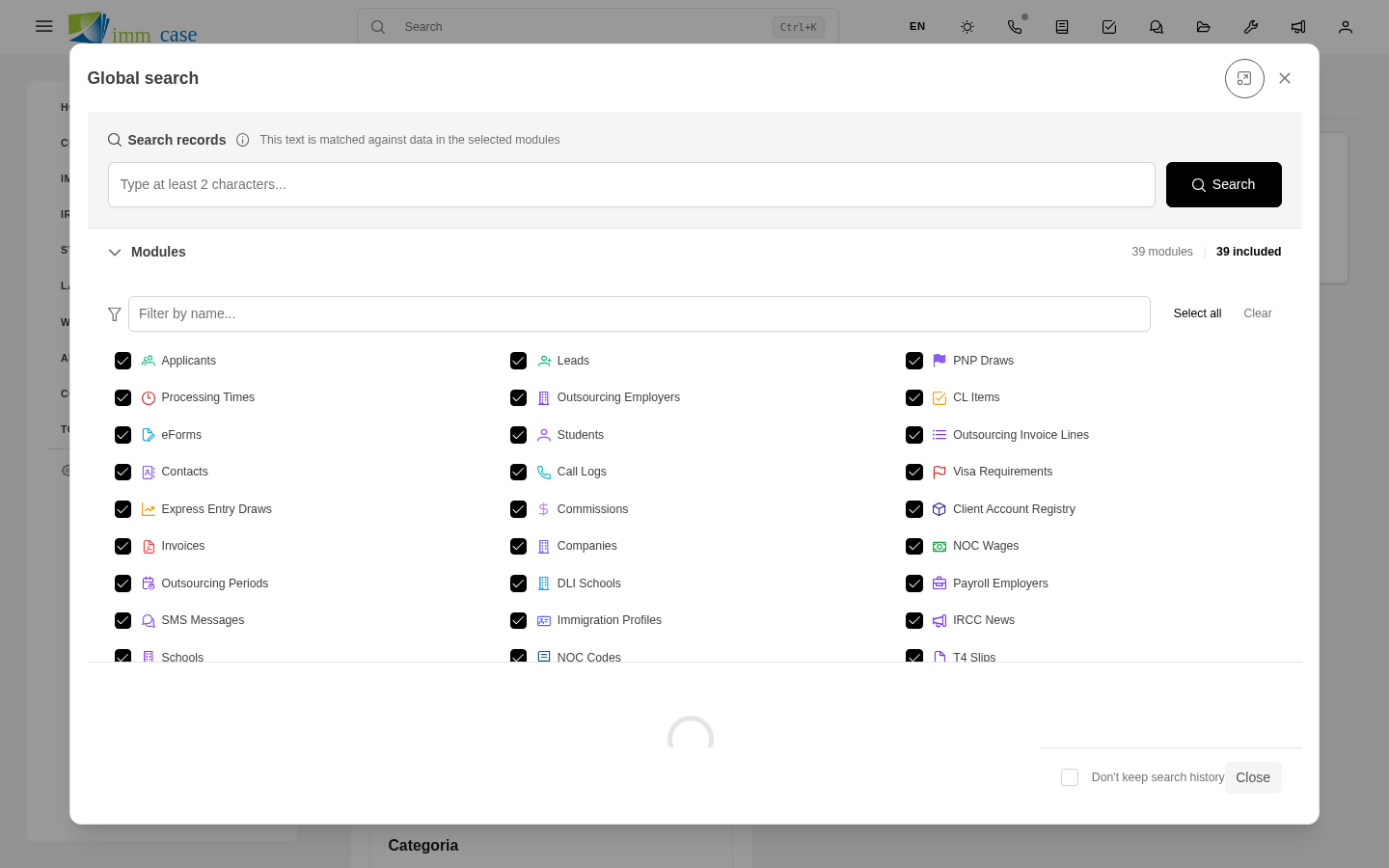
Apply a saved filter
Available filters appear as tabs or in a dropdown above the table. Click one and the list reconfigures instantly with its conditions, columns, and ordering.
Default filters
If your administrator configured a default filter for a module, that's what you see when you first enter the list each session. For example, "My open cases" is often the default in the cases module.
Sorting columns
In table view, click any column header to sort by it. A second click reverses the order (ascending ↔ descending). Sort survives search and filters; it's saved as part of a filter if you save that configuration.
Search vs. filter
| Question | Use… |
|---|---|
| Where is this specific applicant? | Global search |
| Which applicants match this text? | Module search |
| Which applicants match these rules? | Filter |
| Which do I need to see every day? | Saved filter as default |
Watch out for
- Search needs 2 or more characters. A single letter returns nothing — by design, so you don't get flooded with thousands of results.
- Search only looks at text fields. It does not look inside attached PDFs or inside images. For those, use filters by date or file type.
- Saved filters are per user. Your filter list isn't the same as your colleague's. To share one, mark it explicitly when you save.
- Filters respect permissions. If a filter looks for "All closed cases" but you can only see cases assigned to you, you'll only see those — the filter doesn't bypass permissions.
- "Clear filter" may hide records if your administrator defined a default filter. Clearing all filters returns to the default filter, not to "see everything".
Where to next
- Applicants — first day-to-day module.
- Part 6 (Administration) covers configuring default filters for your team.