Calendar
Why this matters
The calendar is where your practice's appointments, reminders, and deadlines live: client interviews, IRCC deadlines, hearings, visa expirations, internal meetings. Connecting it to cases means that when a work permit is about to expire, the calendar knows without you having to repeat the date in two places.
It also serves as a shared agenda: if you configure team availability, you can see when colleagues are free to schedule internal meetings or assign an urgent case.
Get to the calendar
Sidebar → Calendar. You land on the current month view with your events.
Create an event
- Click on a day/time in the calendar (or Create event button).
- Fill in:
- Title — short and descriptive ("CAS118 Interview", "García biometrics deadline").
- Date and time, Duration (or All day for deadlines).
- Type — appointment, deadline, reminder, internal meeting, client event.
- Applicant or Case (optional, links the event to the record).
- Participants — who from the team will attend.
- Reminder — when to notify (15 min before, 1 day, 1 week).
- Notes — agenda or context.
- Save.
If you turned on Add video call, ImmCase automatically creates the Jitsi link and includes it in the event. More detail in Video calls.
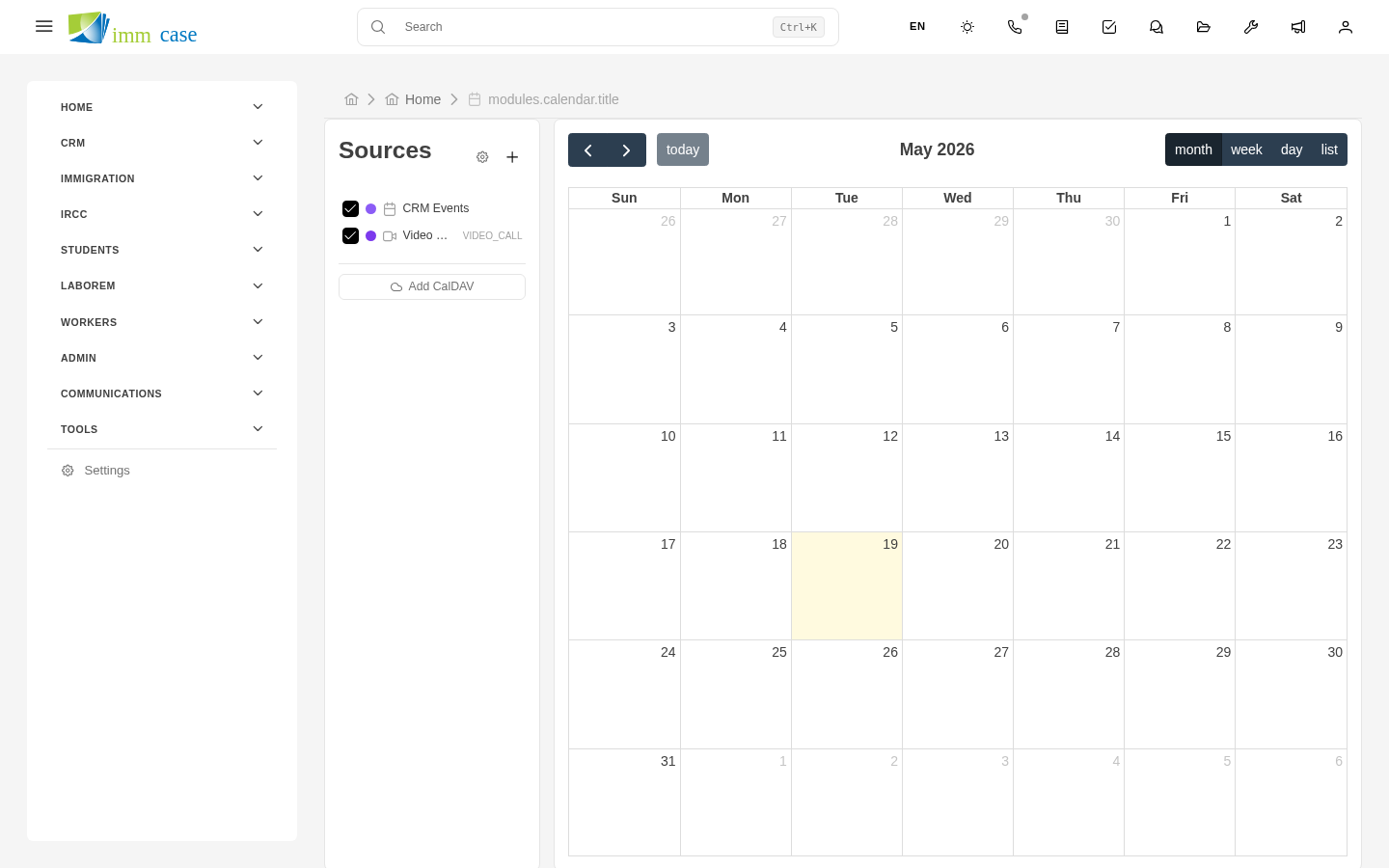
Calendar views
Switch between views as needed:
- Month — general view, ideal for planning upcoming weeks.
- Week — more detail, ideal for scheduling day-by-day.
- Day — minute-by-minute, ideal for a day with many appointments.
- Agenda (list) — events in chronological list, no grid.
Events linked to cases
When an event is linked to a case or applicant, you see it from both sides:
- On the calendar, the event appears with a link to the case.
- On the case or applicant, the Calendar tab shows every event associated.
This avoids fragmentation: instead of "what do I have today" and "what's up with case CAS118", you see one from the other automatically.
IRCC deadlines
For important deadlines (submission deadline, expected response date):
- Create the event with Type: Deadline.
- Turn on Escalated reminders — multiple notifications at different lead times (1 week, 3 days, 1 day before).
- Mark Critical if missing has serious consequences (closed door at IRCC).
ImmCase can show upcoming critical deadlines on your main dashboard as a highlighted alert.
Shared calendars
If your practice has team or function calendars ("Junior consultants calendar", "Global deadlines"), they can appear on top of yours, distinguished by color:
- Your personal calendar.
- Team calendars you belong to.
- Public practice calendars.
Toggle calendars in the side panel to avoid saturation.
Sync with Google Calendar / Outlook
If your practice has sync configured, ImmCase events appear in your personal Google Calendar or Outlook. Useful for seeing them on your phone. Configuration is managed by your administrator (requires connecting your Google/Microsoft account).
Watch out for
- Time zones matter. If you schedule a meeting with a Quebec client and you're in CDMX, make sure the time is interpreted correctly for both. ImmCase uses your profile's time zone; the client sees the time converted to theirs in the invitation.
- Don't overdo reminders. Turning on notifications at 1 week, 3 days, 1 day, and 1 hour before for every event saturates you. Reserve escalation for critical deadlines.
- Don't delete an event from a closed case. Event history is useful for reports (how long did each case take? how many meetings were needed?). Closing the case is enough; events are preserved.
Where to next
- Dashboards and widgets — add a calendar widget to your main dashboard.
- Notifications — how reminders are delivered.