Video calls
Why this matters
Video calls in ImmCase are for client meetings: initial interviews, document review, results presentation, consultations. They use Jitsi technology (open standard, compatible with any modern browser), so your client doesn't need to install anything — they just open the link you send them.
Every video call is associated with an applicant or case, and the link is generated automatically from ImmCase. It's more professional than sending a personal Zoom and much easier than coordinating Google Meet with clients who don't have a Google account.
Create a video call
Three paths:
- From a case or applicant: open the record → Video calls tab → Schedule new.
- From the calendar: create an event → check Add video call. ImmCase generates the link and includes it in the invitation.
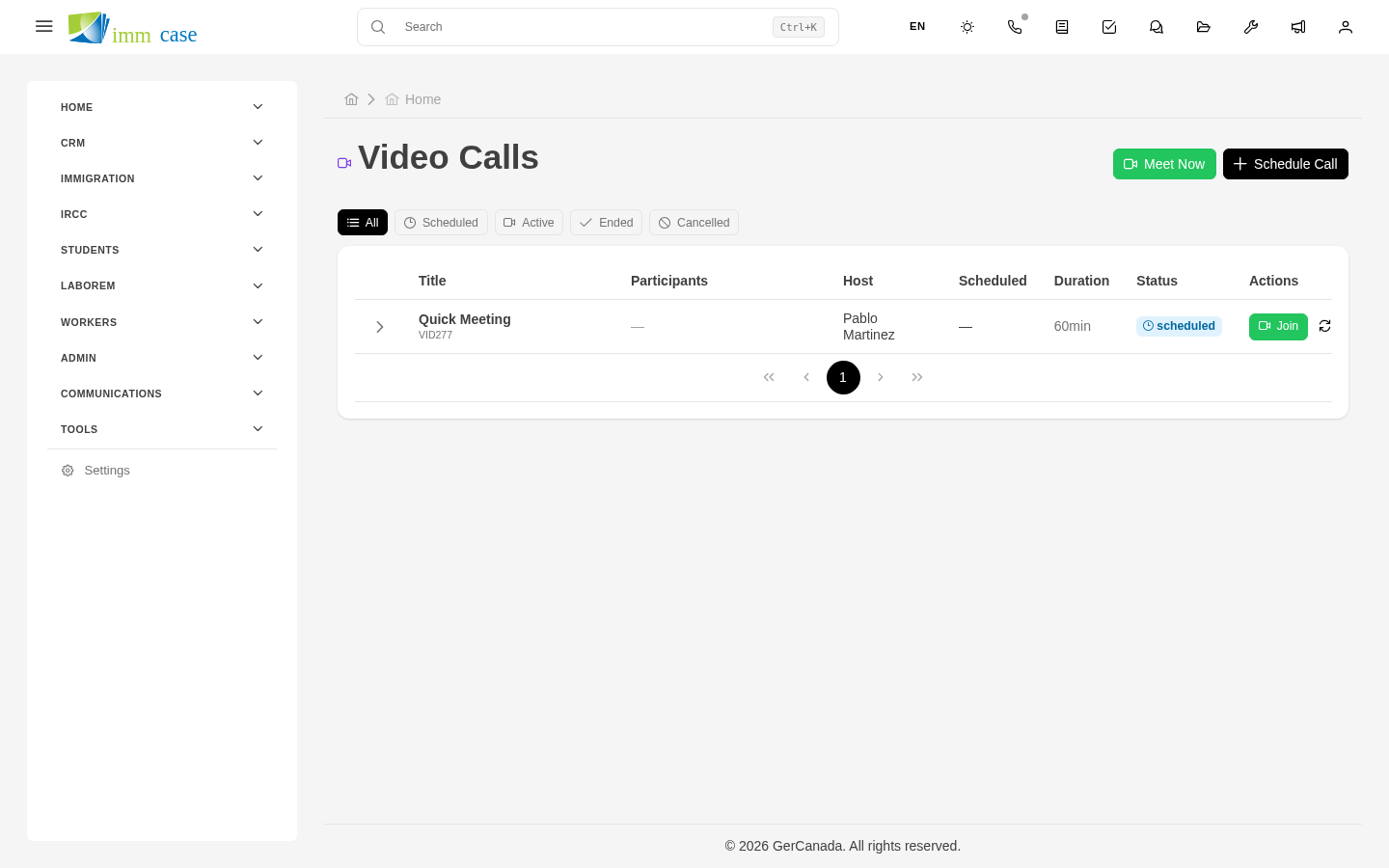
- From the Video calls module: sidebar → Video calls → Schedule.
Fill in:
- Title — what meeting it is ("Initial interview - García", "Documentation review - CAS118").
- Applicant and Case (if applicable).
- Date and time, Duration.
- Participants — who from the team will attend, beyond the client.
- Optional pre-notes.
ImmCase generates a unique link for the meeting and a client link (no account needed).
Invite the client
After scheduling:
- Send invitation button → ImmCase opens a new pre-filled email with:
- Recipient: the applicant's email.
- Subject: "Video call invitation — {date}".
- Body: link, date, time, short joining instructions.
- Review and Send.
The client gets the email, opens the link in their browser, types their name, and joins. No account or install needed.
Join the video call
Five minutes before scheduled time:
- Open the video call (from the calendar, the applicant, or the Video calls module).
- Join button.
- Your browser asks for camera and microphone permission — accept.
- You enter the room.
If the client arrives first, you see them in the participants list. If they arrive later, you see them enter in real time.
During the meeting
Main controls:
- Mute microphone.
- Turn off camera.
- Share screen — useful for showing an IMM form, an IRCC email, a passport photo that's not clear.
- Side chat — for sending links without having to dictate them.
- Raise hand — good practice in meetings with several participants.
Some configurations allow recording the video call — ask your administrator if it's enabled. If you record, tell the client verbally at the start (it's a legal requirement).
End the meeting
Red Leave button. If you're the host (the one who scheduled it), you have the option to end for everyone (closes the room) or leave alone (others can continue).
ImmCase automatically logs: - Actual start and end time. - Duration. - Who attended. - Recording, if made.
Optionally add a meeting summary — what was discussed, decisions, next steps.
Reschedule or cancel
- Reschedule: open the video call → Edit → change date/time → Save. ImmCase can send a notification to the client.
- Cancel: open → Cancel meeting → specify reason → Confirm. ImmCase sends a cancellation email to the client.
Watch out for
- Test audio before starting. It's common to start a meeting and lose the first 30 seconds adjusting the mic. Run a test 2 minutes before with the Test audio option.
- Don't share screen carelessly. If you have other cases open in tabs, don't share the full screen — share only the specific tab or window you want the client to see. You've seen someone accidentally show another client's data, and it doesn't look good.
- The client's connection may be unstable. If the client is in a country with poor Internet, be patient and consider having a fallback (phone call backup). Don't assume it's your problem.
- Recorded video calls take a lot of space. If your practice records all of them, check with your administrator how long they're kept — storage can fill up in a year.