Email client
Why this matters
The ImmCase email client is where you send and receive emails without leaving the system. Every email is automatically linked to the relevant applicant or case, so you don't lose the conversation thread. Unlike Gmail or Outlook, the whole team can see emails related to a case (with the right permissions) — useful so a consultant can pick up another's case without losing context.
Set up your account
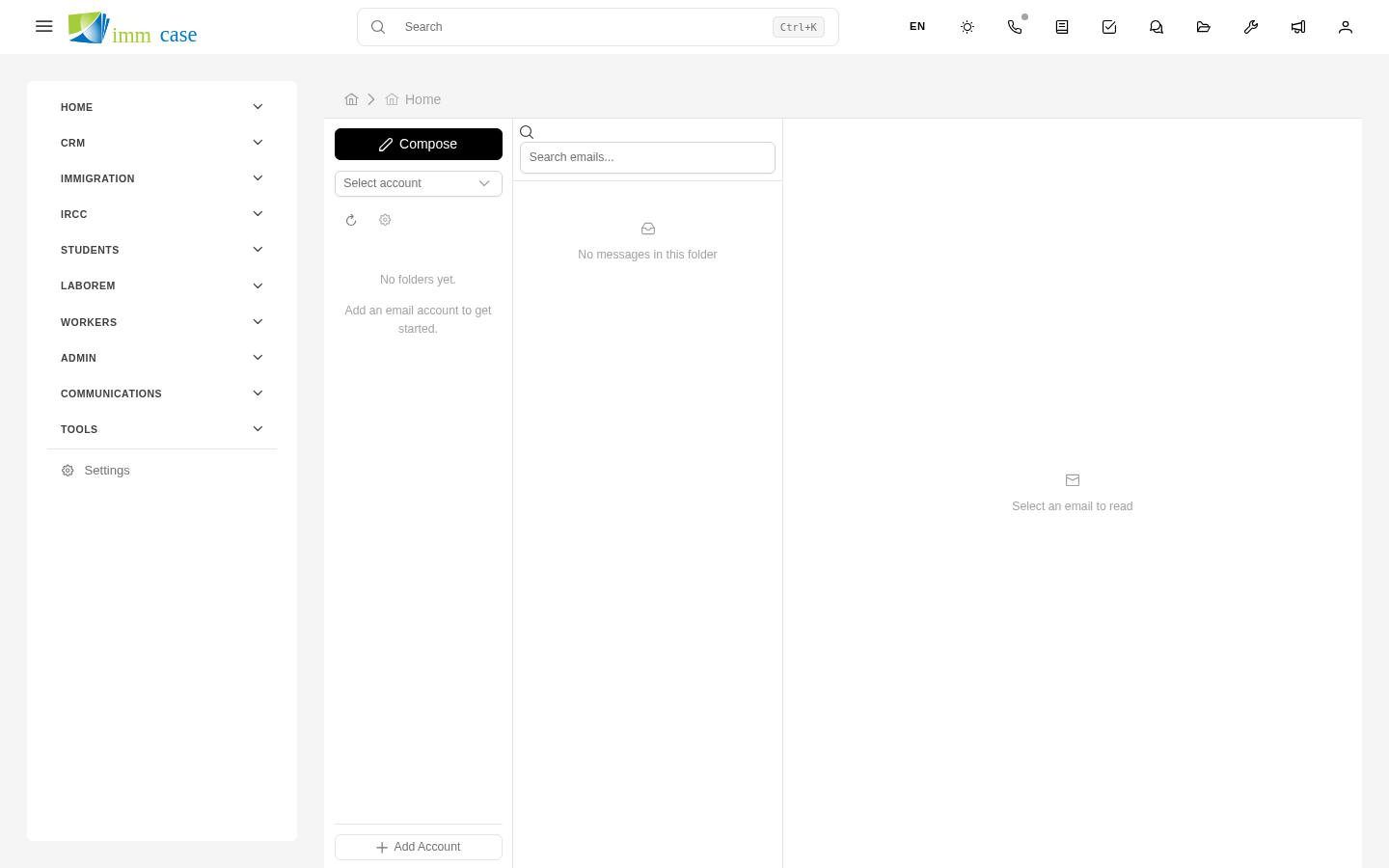
The first time you enter the Email client (sidebar → Email), ImmCase asks for the incoming and outgoing server data for your email account. In most practices, your administrator already configured this during onboarding. If the configure option doesn't appear, it's already done.
If you need to change the account or add another (for example, a consultant's personal account on top of the institutional one), ask your administrator or go to Settings → My email account.
Read incoming emails
- Sidebar → Email. You land on your inbox.
- The list shows sender, subject, date, and an indicator of whether it's linked to an ImmCase record.
- Click an email to read it in the detail pane.
ImmCase tries to automatically link every incoming email to an applicant or case by matching the sender's email address. If it finds a match, the email also shows up in the Emails tab of the applicant/case.
Compose and send an email
Three paths:
- From the inbox: New button in the upper-right corner.
- From a record: open an applicant or case → Emails tab → New email. Recipient and link are pre-filled.
- Reply/Forward: from an open email, Reply or Forward buttons.
In the form:
- To — recipient(s). Autocompletes from your ImmCase contacts.
- Cc / Bcc — copy / blind copy, optional.
- Subject — short and clear.
- Body — formatted editor (bold, lists, links). You can paste images.
- Attachments — drag files or click the clip icon.
- Template (optional) — pick a pre-built template. More in Email templates.
- Send.
Link an email to an applicant or case
If ImmCase didn't link it automatically (for example, the client wrote from a different account), link it by hand:
- Open the email.
- In the side pane, Applicant or Case field → search and pick.
- The email is registered under that applicant/case.
Useful when the client writes from their spouse's personal email, or from a different address than what's in their profile.
Email attachments and applicant files
When you receive an email with attachments:
- Open the email.
- See attachments at the bottom of the body.
- Save to applicant files moves a copy to the applicant's auto-folder (
Contacts/<applicant>/Cases/<case>/).
This separates what arrived by email (stays in the email) from what is now officially part of the file (in the folder).
Email signature
Your signature is configured under Settings → My email account → Signature. It's inserted automatically at the bottom of every email you compose. You can disable it per individual email before sending.
Watch out for
- It's not Gmail. Don't expect 50 features of a dedicated email client. ImmCase prioritizes case integration, not advanced features (smart labels, complex filters, etc.).
- Emails sent from outside ImmCase don't link up. If you reply from your personal Outlook on your phone, that email doesn't show up in ImmCase unless you forward it to the ImmCase account or use the "BCC to CRM" address if your administrator configured it.
- Linked emails are visible to your team. If a colleague has permission to see cases, they see case emails. Treat every email as team information, not private.
Where to next
- Email templates — save time with reusable templates.
- Chat — real-time internal team communication.