Email templates
Why this matters
An email template is a pre-built message you reuse for repeated situations: confirming document receipt, reminding the client a paper is missing, sending an IRCC result, sending the initial quote. Templates save time and keep the message consistent — every consultant sends "the welcome email" the same way.
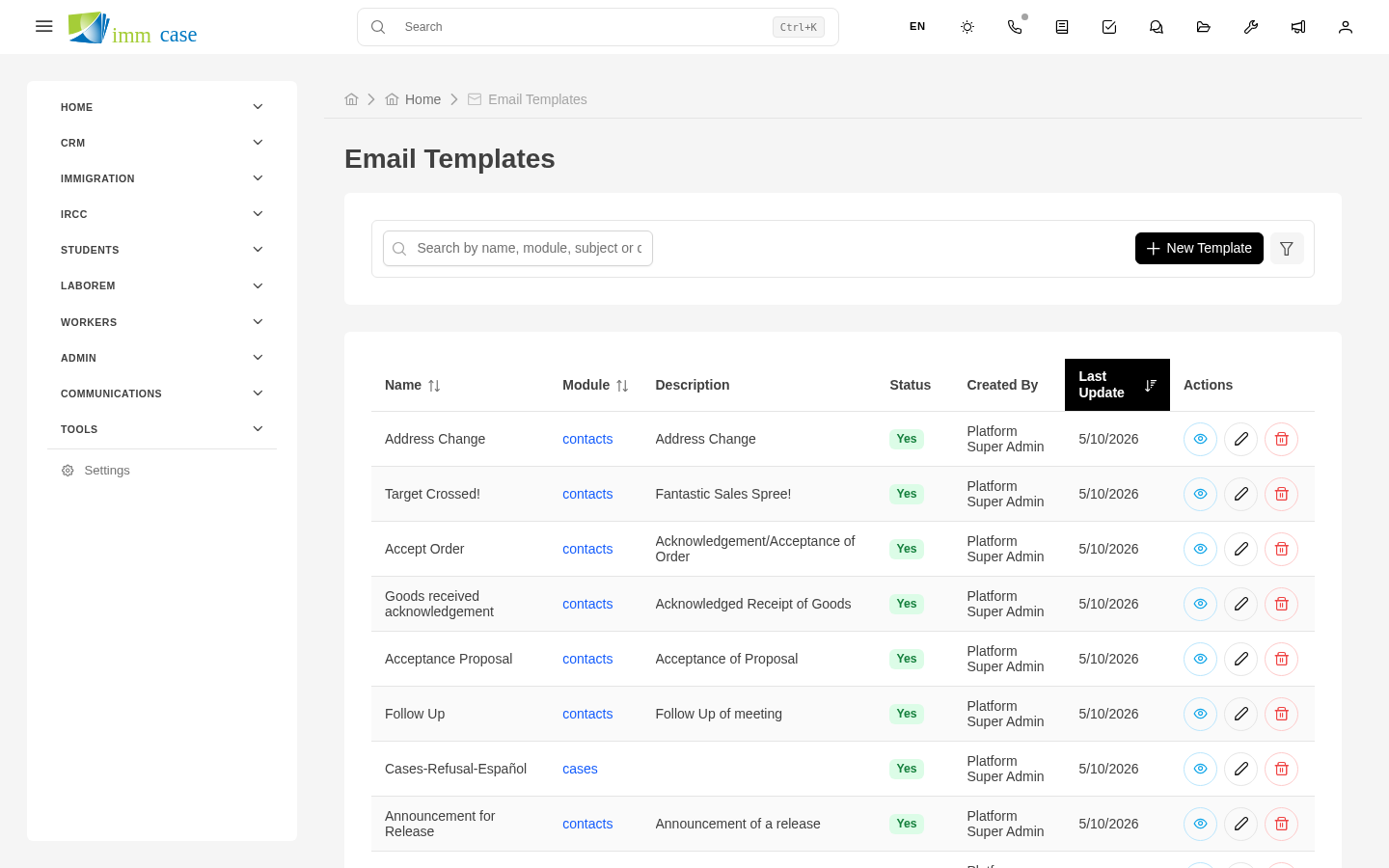
This page covers how to use existing templates. If you need to create a new one, that's covered in Email templates (creation) in Part 6 (Administration).
Apply a template when composing an email
- Compose a new email (from the inbox or from a record).
- In the form, open the Template selector (usually at the top or as a toolbar button).
- Pick the template from the catalog.
- ImmCase fills in the subject and body automatically, substituting the variables (applicant name, case folio, date) with real data.
- Review the result, adjust what you need, and Send.
Variables and why they matter
Templates use placeholders like {applicant_name}, {case_folio}, {case_type}, {responsible_consultant}. When you apply the template, those placeholders are replaced with the data from the applicant/case you're working on.
For example, a template with body:
Dear {applicant_name},
Your case {case_folio} ({case_type}) is ready to be submitted to IRCC...
becomes:
Dear María García,
Your case CAS118 (Work permit) is ready to be submitted to IRCC...
If any variable isn't substituted (stays as {something} in the final email), the template is broken or the record is missing that data. Let your administrator know.
Templates with attachments
Some templates come with pre-included attachments (for example, a "Send quote" template may attach the PDF automatically). Review the attachments before sending — if the file doesn't apply to this client, remove it.
Multilingual templates
If your practice serves clients in several languages, there's usually one template per language: "Bienvenida ES", "Welcome EN", "Bienvenue FR". When composing, pick the one for the client's language.
ImmCase can suggest the applicant-language template if configured — the applicant's Preferred language field drives that signal.
Edit the message after applying the template
The template is a starting point, not a straitjacket. After applying it you can:
- Remove or add paragraphs.
- Change the greeting (from "Dear" to "Hi" if it's a client you have rapport with).
- Adjust tone based on context.
- Add case-specific information.
However, don't edit the template itself from the email — only the message you're composing. To change the master template, go to Settings → Email templates (requires permissions).
Watch out for
- Read before sending. Variables are reliable but not infallible. If the case's "Responsible consultant" field is misassigned, the template signature may show the wrong name.
- Don't reuse templates for sensitive cases. An IRCC refusal notice deserves a personal email, not the same template you send to everyone. Templates are for routine.
- If a template is outdated, report it. If you find dated text (for example, it mentions a program IRCC already cancelled), ask your administrator to update it. Don't compensate by editing the email every time — fix the problem in the template.
Where to next
- Chat — real-time internal communication.
- In Part 6 (Administration), how to create and maintain templates.