Leads
Why this matters
A lead is someone who reached out to your practice but isn't a formal client yet. They come in via the public form on your website, a phone call, a referral, an event. Before investing time in opening a full case file for them, you register them as a lead to see whether their inquiry fits what your practice can offer and whether they're willing to pay.
The Leads module is where they live while you qualify them. When they accept your services, they get converted into an applicant + case with a single click.
Create a lead
Three ways depending on where the contact comes from:
- Manual — sidebar → Leads → Create. For phone calls or walk-ins.
- Automatic from the web — a public form on your site creates the lead with no action from you. More in Web forms.
- Imported — if you receive an Excel of leads from an event, your administrator can import them in bulk.
Key fields:
- Full name and Email — required.
- Phone, Country of origin, Visa type of interest, How they heard about us (source).
- Notes — what they told you in the first conversation. Very useful later to remember context.
The lead funnel
The Status field marks where they are in your sales process:
- New — just arrived, no one has contacted them yet.
- Contacted — they got a reply, waiting for information or payment.
- Quoted — they received a quote.
- Client — signed and paid (about to convert to applicant + case).
- Disqualified — doesn't meet criteria or isn't interested.
Some practices add intermediate statuses. Your administrator defines the list.
The Leads module's kanban view is ideal for seeing your funnel at a glance and dragging leads between statuses as they advance.
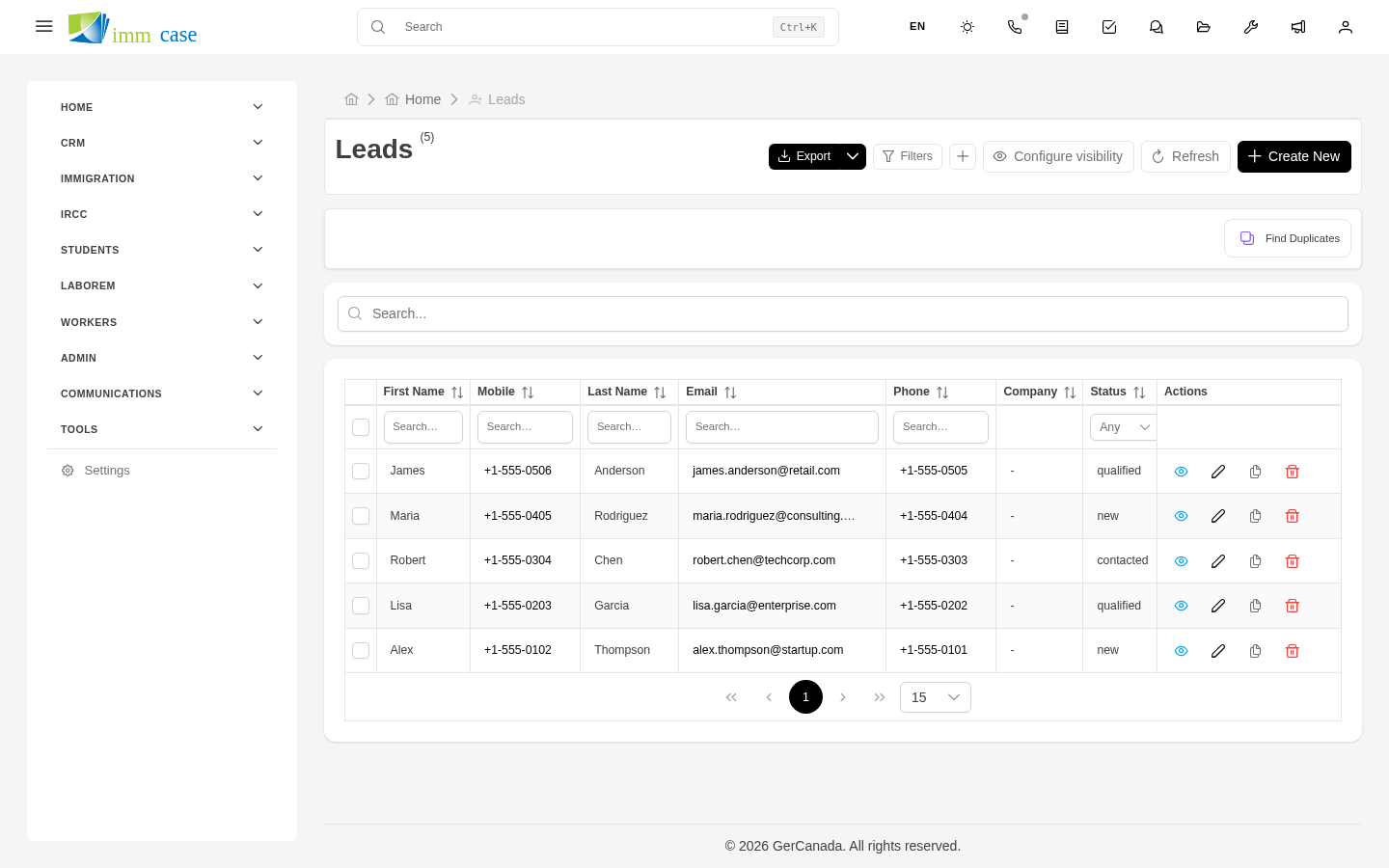
Convert a lead to applicant + case
When the lead signs and pays, you don't have to re-capture their data. Use the Convert action:
- Open the lead.
- Click the Convert button (upper-right corner or actions menu).
- ImmCase creates an applicant from the lead's data and a case linked to that applicant. It asks what case type (work permit, PR, studies, etc.).
- The lead is marked Converted and keeps a link to the applicant and case that were created.
From here on, all work moves to the applicant and case. The lead is no longer modified — it serves as a historical record of how the client arrived.
Disqualify a lead
If the lead doesn't meet criteria or isn't interested in hiring:
- Open the lead → Edit.
- Change Status to Disqualified.
- Fill in Disqualification reason (low budget, doesn't qualify for the program, lost interest, doesn't respond).
- Save.
Don't delete it — disqualified lead information is useful for reports (how many leads came in this quarter? what conversion percentage?) and for reactivating if they change their mind six months later.
Watch out for
- Don't convert too early. Conversion creates an applicant in your database. If you do it before getting paid, you end up with dozens of applicants who never became real clients, polluting your reports. Wait until signature and payment.
- Don't edit a converted lead to "update" their data. Once converted, the data lives on the applicant. Edit the applicant; the lead stays as a snapshot of the original moment.
- If a lead arrives through two channels (came to the event and filled the web form), don't create two records. Search by email or phone before creating.
Where to next
- Applicants — what to do once you've converted the lead.
- Web forms — configure the form on your website that creates leads automatically.