Practice profile
Why this matters
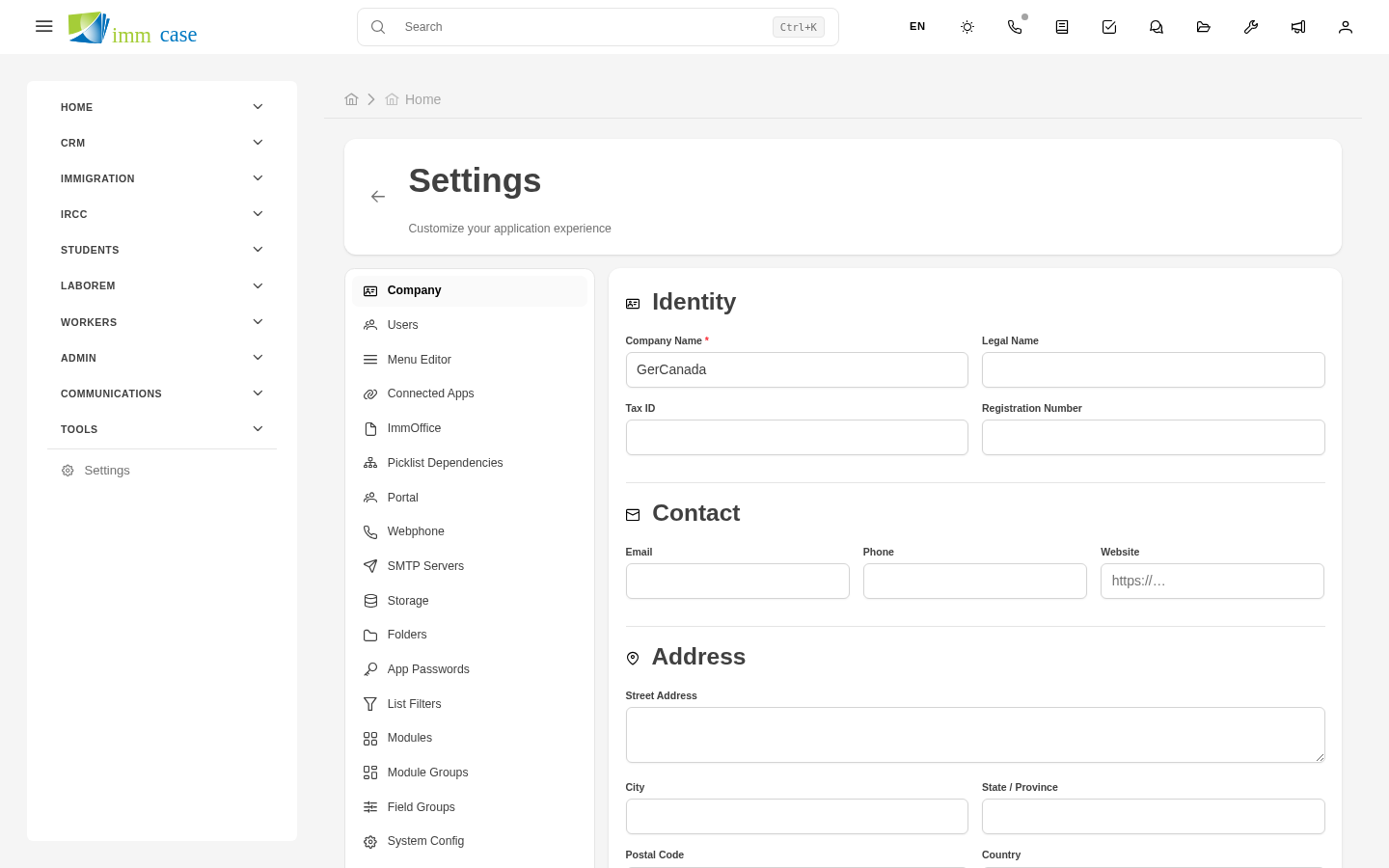
The practice profile is where you define your organization's general data: legal name, logo, tax info, address, primary currency, default time zone, default language. These appear in templates (invoices, quotes, letters), emails, and the application's visible branding.
Get to the profile
Sidebar → Settings → Practice profile.
You land on the form with every editable field.
Data to fill in
Identity
- Legal name — the official one, as it appears in legal documents.
- Doing-business-as name if different.
- Tax ID by country.
- Practice RCIC number (Canada).
Branding
- Logo — upload a square one and a horizontal one if available. Appears on templates and in the top bar.
- Primary color — used in emails and templates for accents.
- Favicon — the icon that appears on the browser tab.
Contact
- Official address — for invoices and legal documents.
- Main phone.
- General email.
- Website.
Regional settings
- Primary currency (CAD, USD, MXN). Defines the default for quotes and invoices.
- Primary time zone.
- Default language of the system for new users.
- Date format (DD/MM/YYYY, MM/DD/YYYY, YYYY-MM-DD).
Fiscal
- Default tax rates — typical taxes you apply to quotes.
- Bank info to appear on invoices if payments are by transfer.
How this data is used
- PDF and email templates use tokens like
{{practice_legal_name}},{{practice_logo}},{{practice_address}}filled with these fields. - Sign-in page shows the configured logo.
- Reports include legal data in the footer.
- System transactional emails (password recovery, notifications) use the profile's email and name.
Changing data here is reflected everywhere instantly.
Watch out for
- Changing the legal name doesn't change old data. Already-generated invoices and quotes keep the previous data — fiscally correct.
- The logo is cached. If you upload a new one, it can take minutes to appear for every user. Hard refresh (Ctrl+F5) clears it.
- Sensitive fiscal data — be conservative about who has access to edit this profile. Changing a tax ID or RCIC number by mistake can produce invalid invoices.
Where to next
- Audit — who changed what in the profile and when.
- PDF templates (creation) — where the profile data is used.