PDF templates (creation)
Why this matters
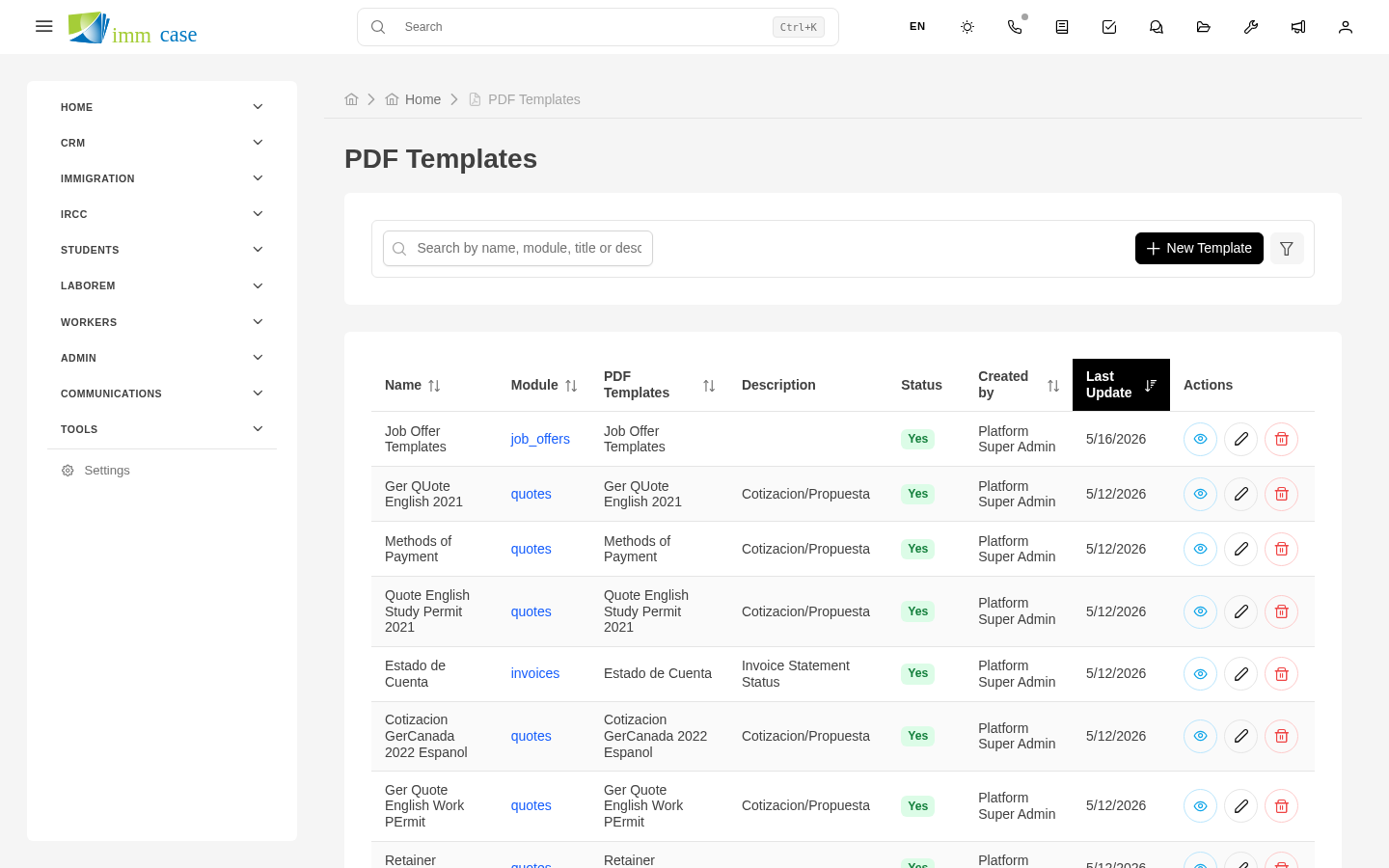
PDF templates are the pre-built documents that produce your quotes, invoices, representation letters, receipts, proofs. As an administrator, you create and maintain them. User-side usage is covered in PDF templates (usage).
Create a template
- Sidebar → Settings → PDF templates → Create.
- Fill in:
- Name ("Standard ES quote", "Detailed EN invoice", "FR representation letter").
- Module it's generated on (Quotes, Invoices, Cases, etc.).
- Main language of the template.
- Save and enter the editor.
Editor structure
The template editor has three areas:
- Header — appears on every page, typically your logo and practice info.
- Body — the main content with dynamic tokens.
- Footer — page number, legal address, etc.
Each area is edited with rich HTML (visual editor or code).
Dynamic tokens
To insert record data:
{{applicant_name}}— inserts the applicant name.{{case_folio}}— case folio.{{date}}— current date.{{line_items_table}}— table with the quote/invoice line items (special for modules with line items).{{total}}— document total.
The full token list depends on the module. Editor → Insert token shows the available ones.
BLOCK_DATA and conditional blocks
To show/hide sections based on content:
{{#if has_discount}}...{{/if}}— only if there's a discount.{{#each line_items}}...{{/each}}— repeats per line item.
These blocks are processed at PDF generation time.
Custom CSS
Each template can have its own CSS for styles:
- Typography.
- Colors.
- Margins.
- Boxes, lines, separators.
Editor → Custom CSS tab. Careful: mPDF (the PDF engine) has limitations — not all CSS3 works. Test before publishing.
Import from Vtiger
If you're coming from Vtiger, there's an importer command to bring legacy templates over. Ask your technical administrator: vtiger:backfill-pdf-templates. Tokens are converted to [token] automatically; some [TODO:vtiger:X] markers are left for manual review.
Test the template
Before publishing:
- Preview with a sample record.
- Verify every token substitutes correctly.
- Review format at different content sizes (quote with 1 line item vs. 30).
Associate templates with modules
For the template to appear as an option to the user:
- Associations tab → add the modules where it'll be available.
- Mark as default for one of the modules if you want it suggested.
Watch out for
- mPDF has quirks. CSS attribute selectors like
table[border="0"]are ignored. Use standard class or ID selectors. Some legacy HTML elements (<font>, inline attributes) are rewritten internally — that's documented indocs/PDF_RENDER_*. - Don't modify a template in production without testing. A bad template can produce PDFs that break the conversation with the client.
- Version your critical templates. There's a change history table — use it. Before publishing big changes, export the current version as a backup.
Where to next
- Email templates (creation) — similar but for emails.
- Workflows — automate PDF generation.