Web forms
Why this matters
A web form is a form on your website anyone can fill out, with the responses going straight into ImmCase as a new lead. No glued-on Google Forms, no passing responses by hand. Useful for:
- Capturing initial inquiries on your site (contact / free evaluation form).
- Collecting structured info before an interview (pre-consultation questionnaire).
- On-site capture at events or fairs (with a tablet).
Create a web form
- Sidebar → Web forms → Create.
- Fill in:
- Internal name — only you see it ("Website contact", "PR evaluation").
- Public title — what the visitor sees ("Request your free evaluation", "Request an appointment").
- Form fields — add what you need (name, email, phone, country, visa type, free-form message).
- Configure actions on receipt:
- Create lead — automatic.
- Notify — which consultant receives the alert.
- Reply with email — confirmation to the client.
- Assign tag or category to the created lead.
- Publish.
ImmCase gives you a unique URL for the form to paste on your website (or embed as an iframe).
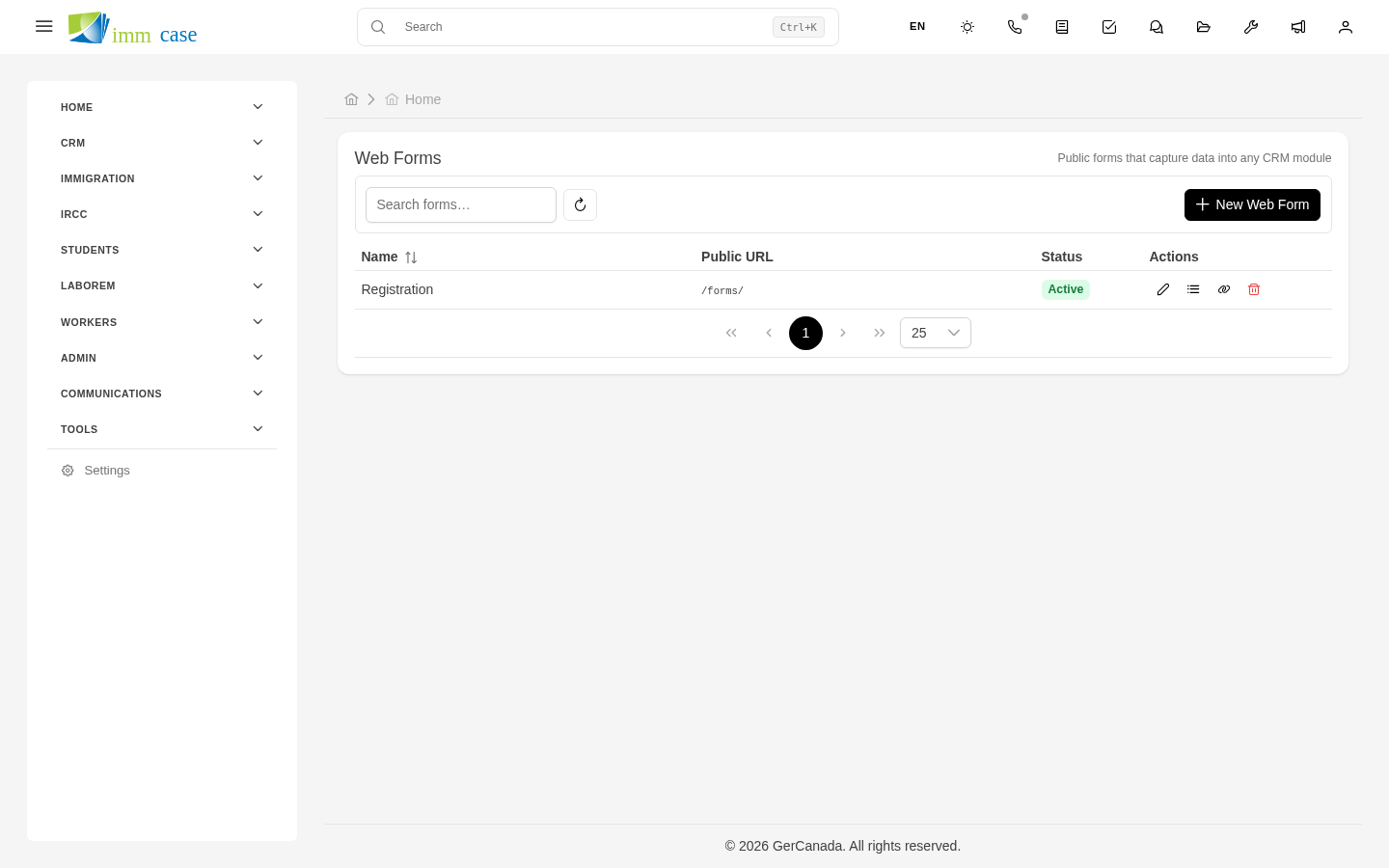
Share the form
Three options depending on use:
- Direct link —
https://forms.<your-practice>.immcase.ca/<form-id>. Send it by email, SMS, social media. - Iframe — HTML code to paste into your WordPress, Squarespace, etc.
- QR code — for printing on brochures or cards.
Receive responses
When someone submits the form:
- ImmCase creates a lead with the data.
- Notifies the configured consultant.
- (Optional) Sends a confirmation email to the submitter.
The lead appears in the Leads module with status New and source Web form: .
View responses
Each form has a Responses tab where you see all received responses chronologically. Useful for:
- Spotting duplicates (same client filling out twice).
- Analyzing which form converts better.
- Audit — when exactly did this response arrive?
Validation and anti-spam
ImmCase protects against bots and spam:
- Optional CAPTCHA at the bottom of the form.
- Email validation via regex.
- Phone validation by country.
If your form starts receiving a lot of spam, turn on CAPTCHA or ask your administrator for additional filters.
Watch out for
- Don't ask too much in the initial form. More fields = less conversion. Ask the minimum needed to call the client (name, email, phone, message). The rest gets captured in the interview.
- The confirmation email to the submitter matters. Without it, the client wonders "did my message arrive?" and often leaves for another practice. Always set up an automatic confirmation email.
- Don't use the public form for sensitive data. Scanned passports, visa numbers, don't belong in a public form. Those you ask later by a secure channel (email or client portal).
Where to next
- Leads — what to do with leads coming from forms.
- Notifications — configure who receives alerts of new responses.