Picklists
Why this matters
A picklist is a set of predefined values for a field: visa type, marital status, nationality, case stage. Instead of free text (where one consultant types "PR" and another "Permanent Residence" and another "Residencia Permanente"), you pick from a list. Guarantees consistency and enables reliable reports.
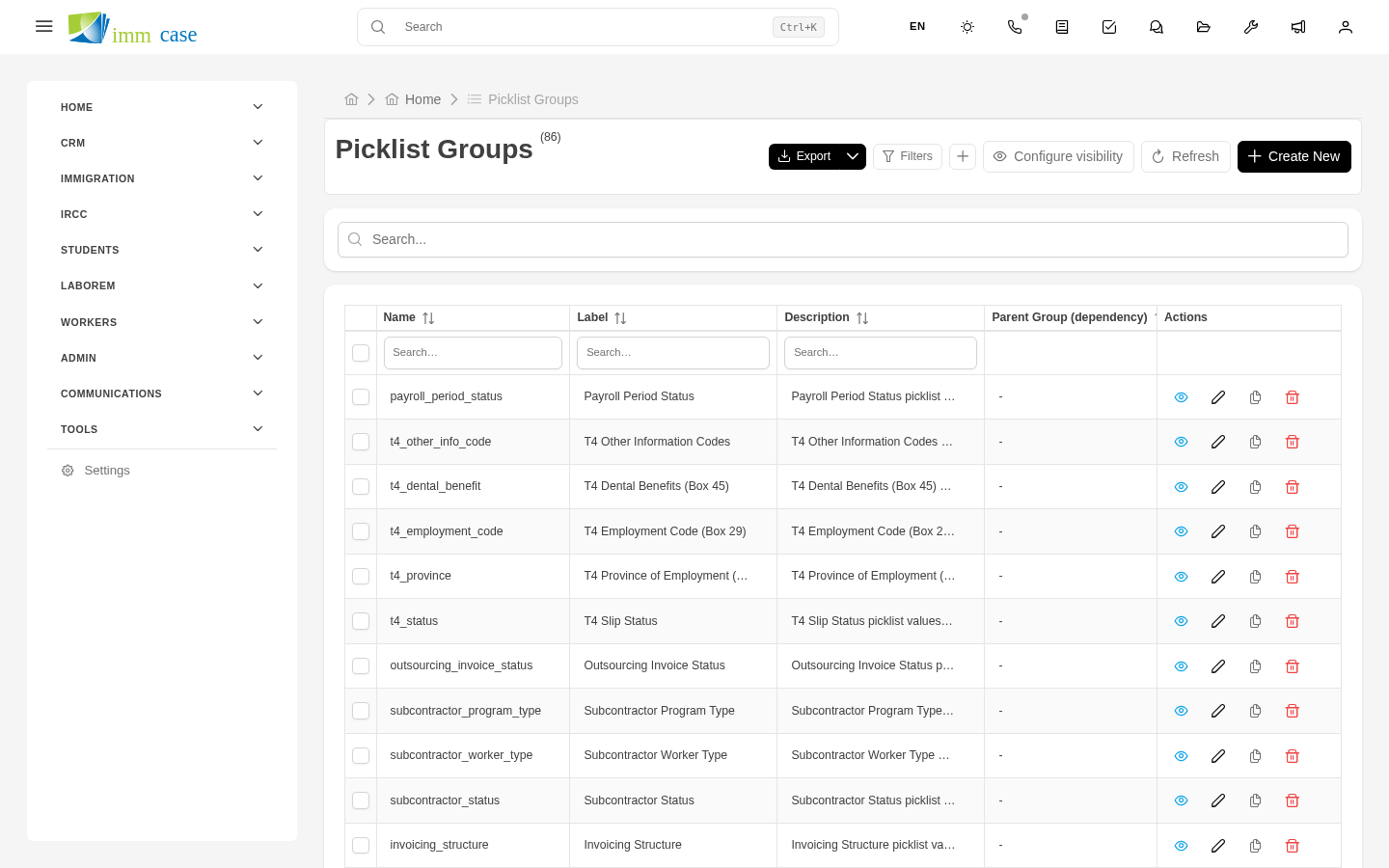
ImmCase organizes picklists in groups, where each group has its options.
Create a picklist group
- Sidebar → Settings → Picklists → Create group.
- Fill in:
- Name of the group (for example, "Visa type", "Case stage").
- Technical key (
visa_type,case_stage). - Type: global (shared across modules) or module-specific.
- Save.
Add options to the group
- Open the group → Options tab → Create option.
- Fill in:
- Label — what the user sees.
- Technical value — used in DB (
pr_express,study_permit). - Optional color — useful in kanban and cards.
- Optional icon.
- Order — position in the list.
- Active — disabled means it doesn't appear in new forms.
- Save.
Assign group to a field
When creating a Picklist field in a module, in the field form you pick which group it uses. Once assigned, the field only accepts values from the group.
The same group can be used by fields from several modules. For example, "Marital status" is used in Applicants, Spouses, Applicant Parents — all share the same group.
Modify existing options
- Rename label — instant, existing records don't change (they still point to the same technical value) but see the new label.
- Change technical value — careful: records pointing to the old value get orphaned. Better to create a new option and migrate.
- Disable option — records that already have it keep it, but new forms don't offer it.
Multi-selectable picklists
If a field allows multiple options from the same group (for example, "Languages spoken"), mark it as Multi-picklist when creating the field. Internally it stores an array of IDs.
Watch out for
- Don't overuse groups. Having 200 picklists of 3 options each is a maintenance disaster. If you have similar fields, share the group.
- Colors matter for kanban. If your picklist is used as a kanban grouper, assign distinct colors so columns are visually distinct.
- Verify before deleting. Deleting a group or option can leave fields without valid options and records with invalid values.
Where to next
- Field visibilities — where picklist fields appear.
- Fields — create fields that use picklists.