Signing in
Why this matters
ImmCase is a web application. There's nothing to install on your computer or phone: you open a browser, go to your practice's address, and sign in with your email and password. This page covers how to do it the first time and what to do when you forget your password.
How to sign in
1. Open your practice's address
Every immigration practice using ImmCase has its own address. The typical form is https://<your-practice>.immcase.ca. If you don't know it, ask whoever gave you the account — usually someone in administration or your direct manager.
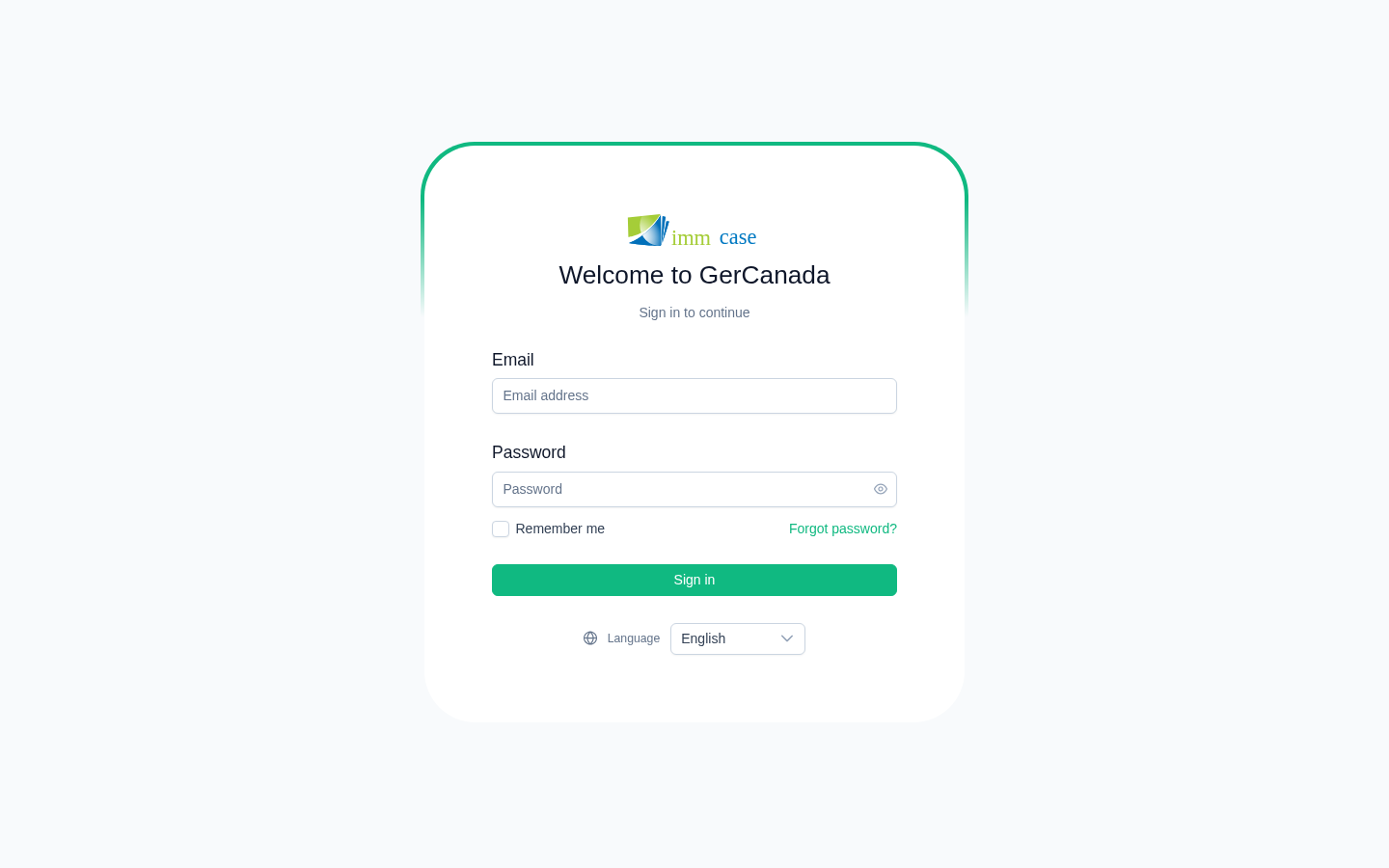
2. Enter your email and password
- In Email address, enter the email your practice registered (not a personal one).
- In Password, enter the one you were given or created.
- If you're using ImmCase from a personal computer, check Remember me to skip signing in every day. Do not check it on shared computers or in internet cafés.
3. (Optional) Change the language
A Language selector sits at the bottom of the screen. You can pick English, Español, or Français. The change applies immediately to this screen; once you're in, your preference is saved to your profile.
4. Click Sign in
If your credentials are correct, you land on the main dashboard. If you see a red error above the form, double-check the email spelling and that the password doesn't have leading or trailing spaces (the most common cause).
If you forgot your password
- On the sign-in screen, click Forgot password?
- Enter your email and click Send reset link.
- Check your inbox. The email arrives within seconds; if it doesn't show up in 1–2 minutes, check your spam or junk folder.
- Open the email and click the link. A new screen opens.
- Enter your new password twice and click Reset password. Minimum 8 characters.
- You're sent back to the sign-in screen automatically. Sign in with the new password.
Known limitation: the forgot-password and reset-password screens currently display in English regardless of your language preference. This only affects those two steps; the rest of ImmCase respects your language setting.
Watch out for
- The reset link expires. If you wait more than 60 minutes to use it, it becomes invalid and you'll need to request another one from Forgot password?
- Only one link is active at a time. Requesting a new link invalidates the previous one. If you requested two in a row, use the most recent.
- The link points to your practice's domain. If you requested a reset from
https://demo.immcase.ca, the email links tohttps://demo.immcase.ca/reset. Don't open links pointing to a domain other than your practice's — report them to your administrator. - If the email never arrives, your email may no longer be registered in ImmCase. Ask your administrator to verify your account under Settings → Users.
Where to next
- Interface anatomy — what the dashboard, sidebar, and profile menu look like once you're in.
- Your profile — change your password, language, photo, and signature once you're signed in.