Your profile
Why this matters
Your profile is the information the rest of the practice sees about you: your name, photo, email. It's also where you change your password and pick the language and time zone you see ImmCase in. It's worth filling out properly from the start — especially the photo, because it makes you easy to recognize in comments, case assignments, and chat conversations.
How to get to your profile
- Click your avatar (upper-right corner of the screen).
- In the drawer that opens, click My Profile.
You land on the My Profile screen, with your photo on the left and your editable fields on the right.
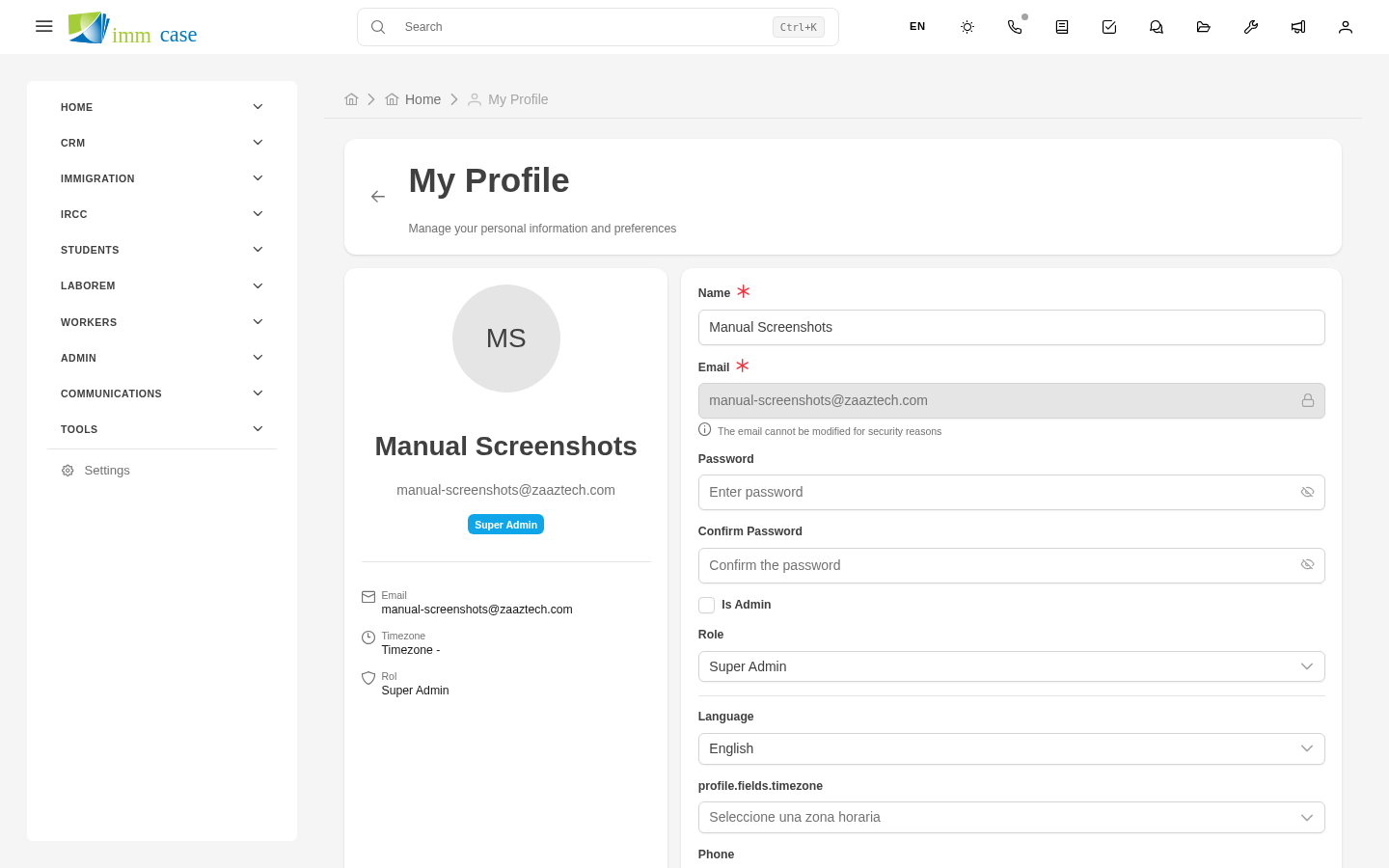
What you can change
Profile photo
Click on the avatar circle (or on your initials if you don't have a photo yet) and pick an image from your computer. It uploads automatically — you don't have to press Save changes for it to apply. Common formats: JPG, PNG, WebP. Recommended size: square, at least 200×200 pixels.
Personal info
- Name — your full name as it should appear in emails and comments. Required.
- Email — the one you used to sign in. Cannot be modified from here, for security reasons. If you need to change it, ask your administrator to do it in Settings → Users.
- Phone — optional. Your coworkers can see it if they need to reach you outside ImmCase.
- Bio — optional. A short line about your role or specialty. Shows up on your user card in a few places.
Preferences
- Language — English, Español, Français. Changes the language of the whole ImmCase interface. The change applies next time you load a page.
- Time zone — controls how dates and times are displayed (appointments, deadlines, activity logs). Important if you work in a zone different from the server or from most of your practice.
Password
Two fields at the bottom of the form:
- Password — type the new password you want to use. Minimum 8 characters.
- Confirm Password — type it again, exactly the same.
If you leave these fields empty, your current password doesn't change. Only fill them in when you actually want to change it.
Saving the changes
At the bottom of the form there's a Save changes button. It applies every change at once: name, phone, bio, language, time zone, password. (The profile photo already saved when you uploaded it — the button doesn't affect the photo.)
If everything goes well, you see a green confirmation. If something fails — for example, the two passwords don't match — a red error appears above the form explaining the issue.
Watch out for
- Your email can't be changed from here. Ask your administrator. Changing the email on your account also changes the email you sign in with, which is why it's protected.
- Changing your password doesn't sign you out. You stay connected on your current session. Next time you sign in you'll need the new password. To force-close every open session of yours (for example, you left yourself signed in on a public computer), ask your administrator to do it.
- Language and time zone changes apply on reload. If you change the language and save, the current screen stays in the old language. Reload (F5) or navigate elsewhere to see it in the new language.
- Don't use applicant photos as your avatar. Sounds obvious, but it happens — your avatar is your professional face inside the system, not the client's.
Where to next
- Navigating modules — how to move around the app once your profile is ready.
- Search and filters — how to find any record fast.