Workflows
Why this matters
A workflow is an automation: "when X happens, do Y automatically". Without workflows, every repetitive thing has to be done by hand. With workflows:
- When a case is created → send welcome email to the applicant.
- When a new lead arrives from the form → assign to the consultant on duty and notify them.
- When an invoice is 30 days overdue → mark as Overdue and send reminder.
- When a case moves to "Ready to submit" stage → notify the supervisor.
- When a document is uploaded → rename per conventions and move to the correct folder.
Used well, workflows save hours per week and eliminate human errors.
Workflow structure
Each workflow has three parts:
- Trigger (START) — what event activates it.
- Blocks — flow steps (conditions, actions, waits).
- Connections — order in which blocks execute.
Create a workflow
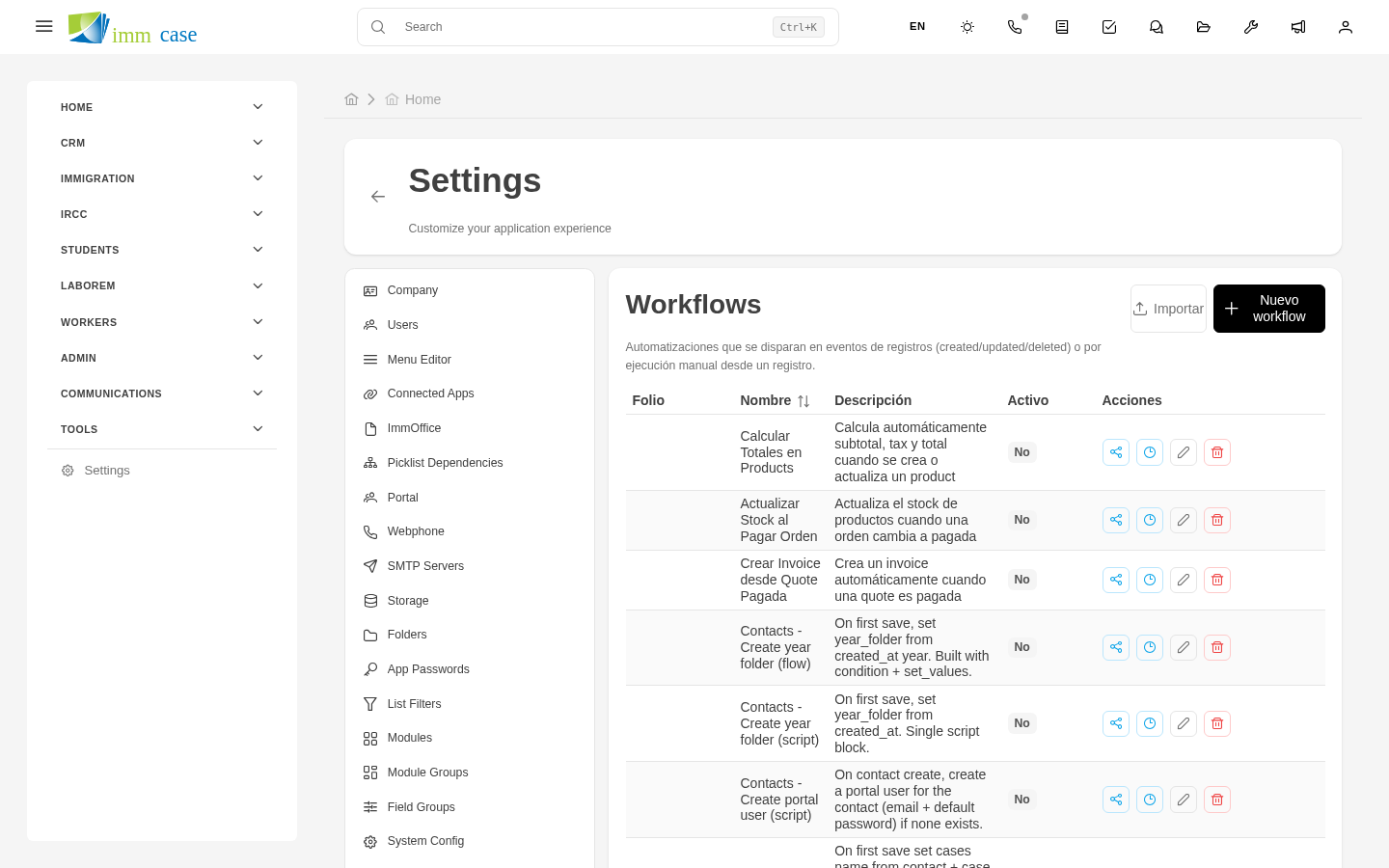
- Sidebar → Settings → Workflows → Create.
- Fill in the basics:
- Name ("Notify upcoming deadline", "30-day collections automation").
- Module it operates on.
- Status — active / inactive.
- Save.
You land on the workflow's visual editor, with a START block already placed.
Configure the trigger (START)
Edit the START block:
- Trigger type:
- Creation of a record.
- Update of a record (general or of a specific field).
- Deletion.
- Specific stage change.
- Scheduled (cron) — daily, weekly, etc.
-
Manual — a user fires it from a button.
-
Optional filters — only fires if the record meets certain conditions (for example, only when the case is PR type).
Add blocks
Typical available blocks:
- Condition (IF) — routes the flow down one branch or another based on a condition.
- Action: Send email — sends email to a person or list.
- Action: Create notification — internal alert to a user.
- Action: Update field — changes a field on the same or another record.
- Action: Create record — creates a new record in any module.
- Action: Assign to user — changes a case or task's owner.
- Action: Generate PDF — generates a PDF from a template.
- Wait — pauses the flow for X time before the next block.
- Webhook — calls an external service.
Each block has its own configuration (recipient, template, condition, etc.).
Connect blocks
After each block, drag a connection to the next. For Condition blocks, there are two connections: one for "true" and another for "false".
Test and activate
- Save the workflow.
- Test with a sample record (test mode without affecting real data).
- When it works well, change status to Active.
Monitor executions
Every time a workflow runs is logged. The workflow's History tab shows:
- When it ran.
- Which record triggered it.
- Result (success, failure, error).
- Error messages if any.
Watch out for
- Circular workflows. If a workflow modifies a field that triggers another workflow that modifies the first field... infinite loop. ImmCase detects and stops some cases, but not all. Design carefully.
- Workflows that send many emails — if a misconfigured condition causes an email to be sent to 5,000 applicants at once, your SMTP server and reputation suffer. Start with limited workflows and observe before scaling.
- Changes to active workflows take effect immediately. If you modify a workflow in production, the next thing that happens uses the new version. Consider temporarily disabling for big changes.
- Deleting a workflow doesn't affect what already executed — it just stops triggering in the future.
Where to next
- Email templates (creation) — workflows use them to send emails.
- PDF templates (creation) — workflows use them to generate PDFs.