Cases
Why this matters
A case is an immigration file: the complete application your practice is handling for an applicant. Every case has an objective (work permit, permanent residence, study visa, refuge), a current stage, deadlines, required documents, IMM forms to submit, and a responsible RCIC consultant. The applicant is the person; the case is the process.
A single applicant can have several cases over time (study visa → work permit → permanent residence). Each is handled separately, but they all hang off the same applicant.
Create a case
Two equivalent ways:
From the applicant (recommended): 1. Open the applicant (Applicants → search → click). 2. In the Cases tab, click Create. 3. The new case is already linked to the applicant.
From the Cases module (if you're creating several cases for different applicants in sequence): 1. Sidebar → Cases → Create. 2. In the form, pick the applicant in the Applicant field.
Key fields to fill in:
- Applicant — who the case's client is.
- Case type — what application this is (work permit, PR, study visa, etc.). The type drives which IMM forms are offered.
- Stage — where in the process the case sits. Typical options: Intake, Documentation, Ready to submit, Submitted, Under IRCC review, Approved, Refused, Closed.
- Responsible RCIC consultant — who owns the case. Defaults to you.
- IRCC deadline (if any) — so it shows up on the calendar and in alerts.
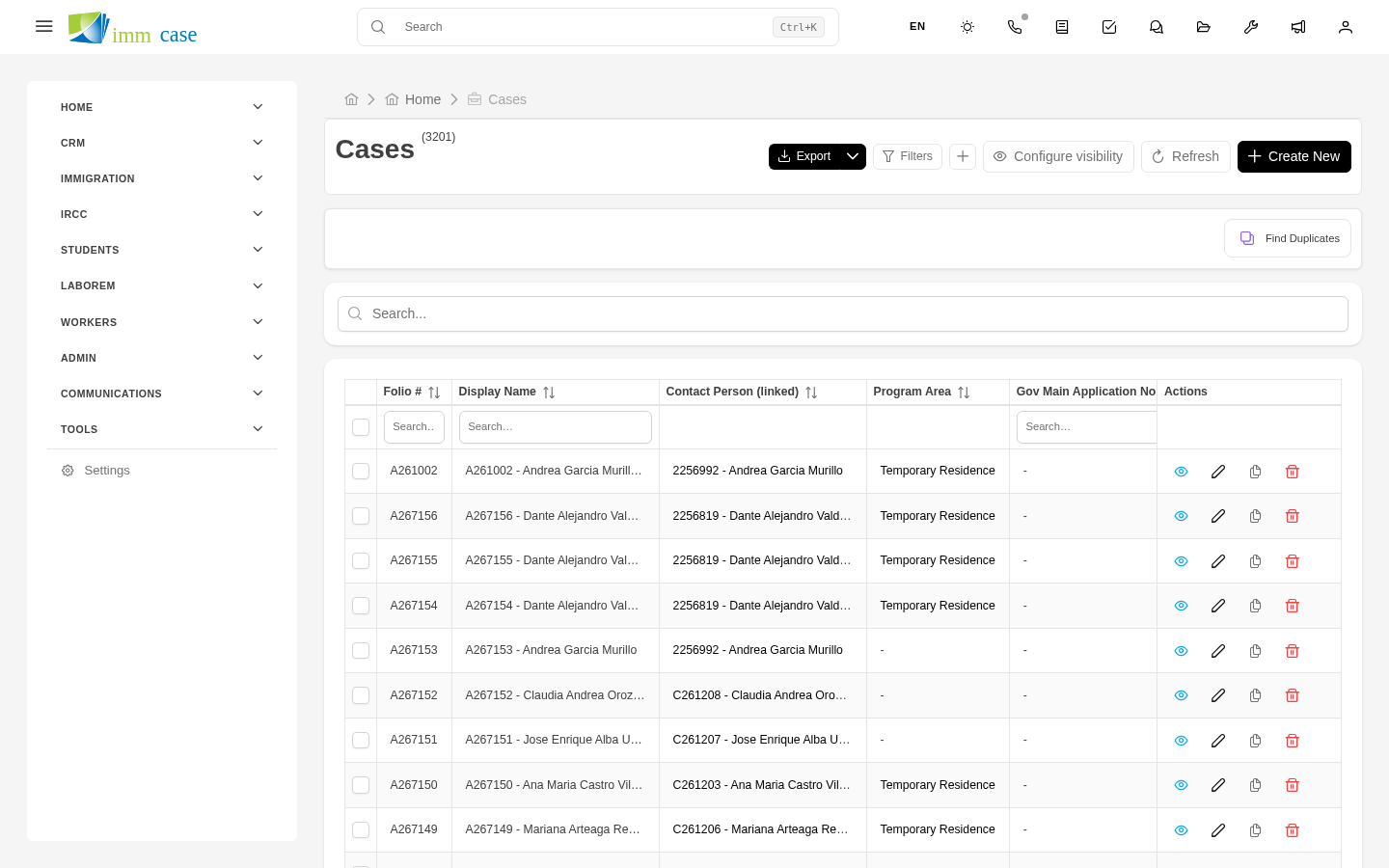
The case detail
When you open a case, the operations hub has:
- Summary — case folio, applicant (click-through), type, current stage, start date, next deadline, responsible consultant.
- Case data — IRCC file number, visa type applied for, applicable program, country of submission, etc.
- Timeline — what happened when (document submissions, IRCC responses, biometric appointments).
Related tabs:
- Documents — case files in its auto-folder (
Contacts/<applicant>/Cases/<case folio>/). - IMM forms — IMM forms completed or in draft for this case.
- Quotes and Invoices — charges related to this case (not the applicant in general).
- Tasks — pending items assigned to the team.
- Emails — all communication associated with the case.
- Comments — internal notes about strategy, observations, warnings.
- Activity timeline — full audit trail of changes.
Move a case between stages
Three ways, pick your preference:
- From the detail: click Edit → change the Stage field → Save.
- From the list view in kanban mode: drag the case card from one column to another. Instant change.
- From a workflow (if your administrator set one up): the stage advances automatically when certain conditions are met (for example, every required document is uploaded).
Each stage change is logged with who did it, when, and from which stage. Useful for reporting case process times.
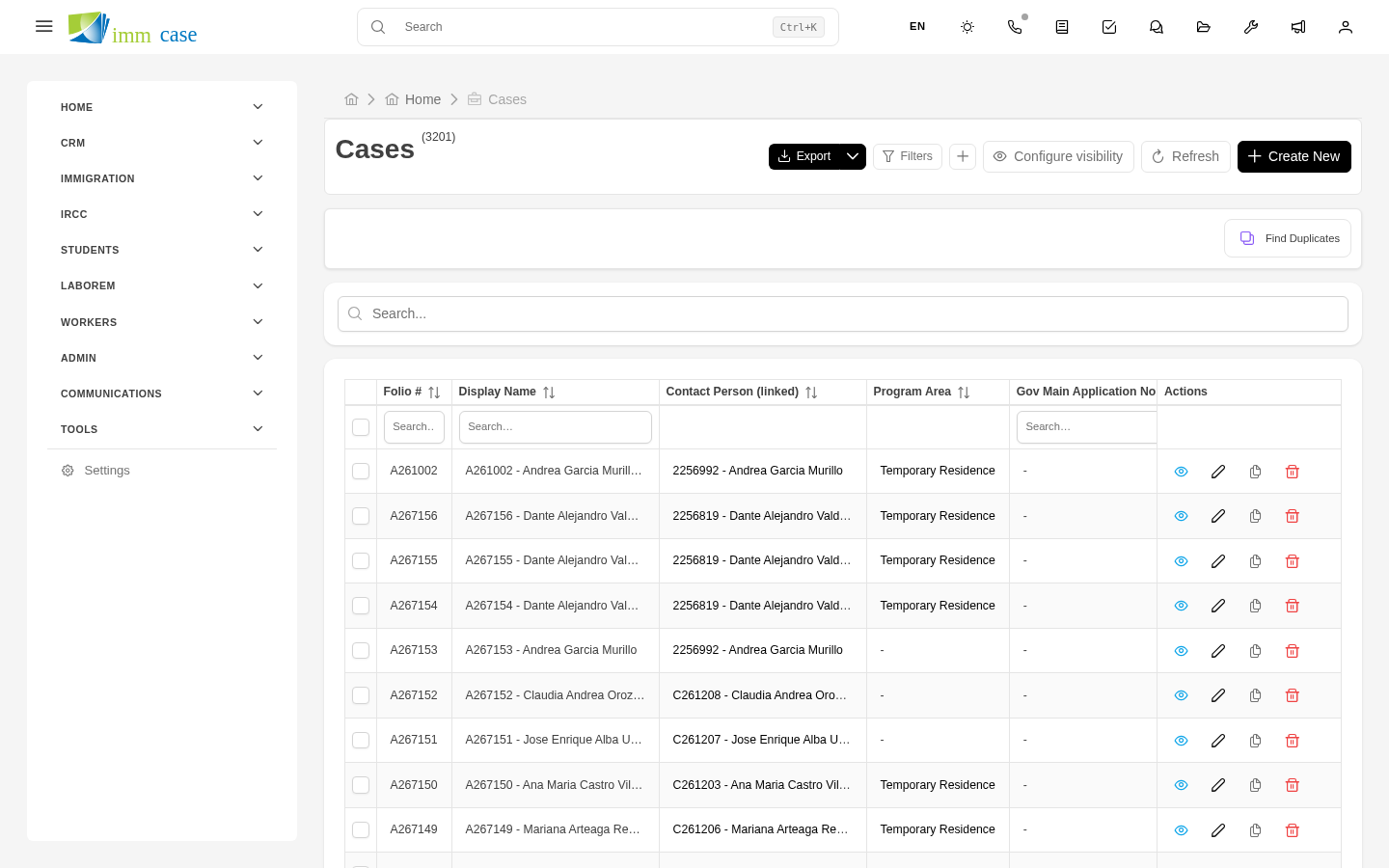
Close a case
When the case is over (approved, refused, or abandoned by the client):
- Open the case → Edit.
- Change Stage to Closed (or Approved / Refused depending on your configuration).
- Fill in Closing date and Outcome.
- Save.
The case disappears from "Active cases" views but stays accessible for historical reference. Documents, comments, and IMM forms are preserved — useful if the applicant comes back years later with another application.
Reassign a case
If the original RCIC consultant goes on vacation or leaves the practice:
- Open the case → Edit.
- Change the Responsible consultant field.
- Save.
The new owner gets a notification. The history of who was responsible before is preserved in the activity timeline.
Watch out for
- One case per application, not per applicant. If the applicant first wants a study permit and then a work permit, those are two separate cases — don't edit the same case by changing its type. Each application has its own IRCC file, and should have its own ImmCase file.
- Don't change the applicant of an existing case. Create a new case under the correct applicant. Switching the applicant breaks auto-folder logic and leaves documents orphaned.
- IRCC deadlines are your responsibility, not the system's. ImmCase reminds you, but it doesn't submit for you. Make sure the deadline is captured correctly for alerts to work.
- Closing a case doesn't archive the documents. They stay in their folder and remain accessible. To really archive (move to cold storage), ask your administrator.