Reports
Why this matters
Reports are the tool for answering concrete questions about your practice: how many cases did we open this quarter? Which consultant closed the most? How much did we collect on each visa type? What percentage of PR cases were approved? Without reports, you're left with feelings; with reports, you decide with data.
ImmCase ships with pre-built reports and lets any user with permission create their own.
Get to reports
Sidebar → Reports. You land on the list of available reports, grouped by category (cases, collections, clients, activity, team productivity).
Run a pre-built report
- Pick a report from the list.
- If the report has parameters (date range, responsible consultant, visa type), fill them in.
- Run.
- ImmCase computes and shows results as a table and/or chart.
Export the report
After running, export to:
- PDF — to print or email. Includes charts.
- Excel (XLSX) — to process data in a spreadsheet.
- CSV — to integrate with another tool (BI, accounting).
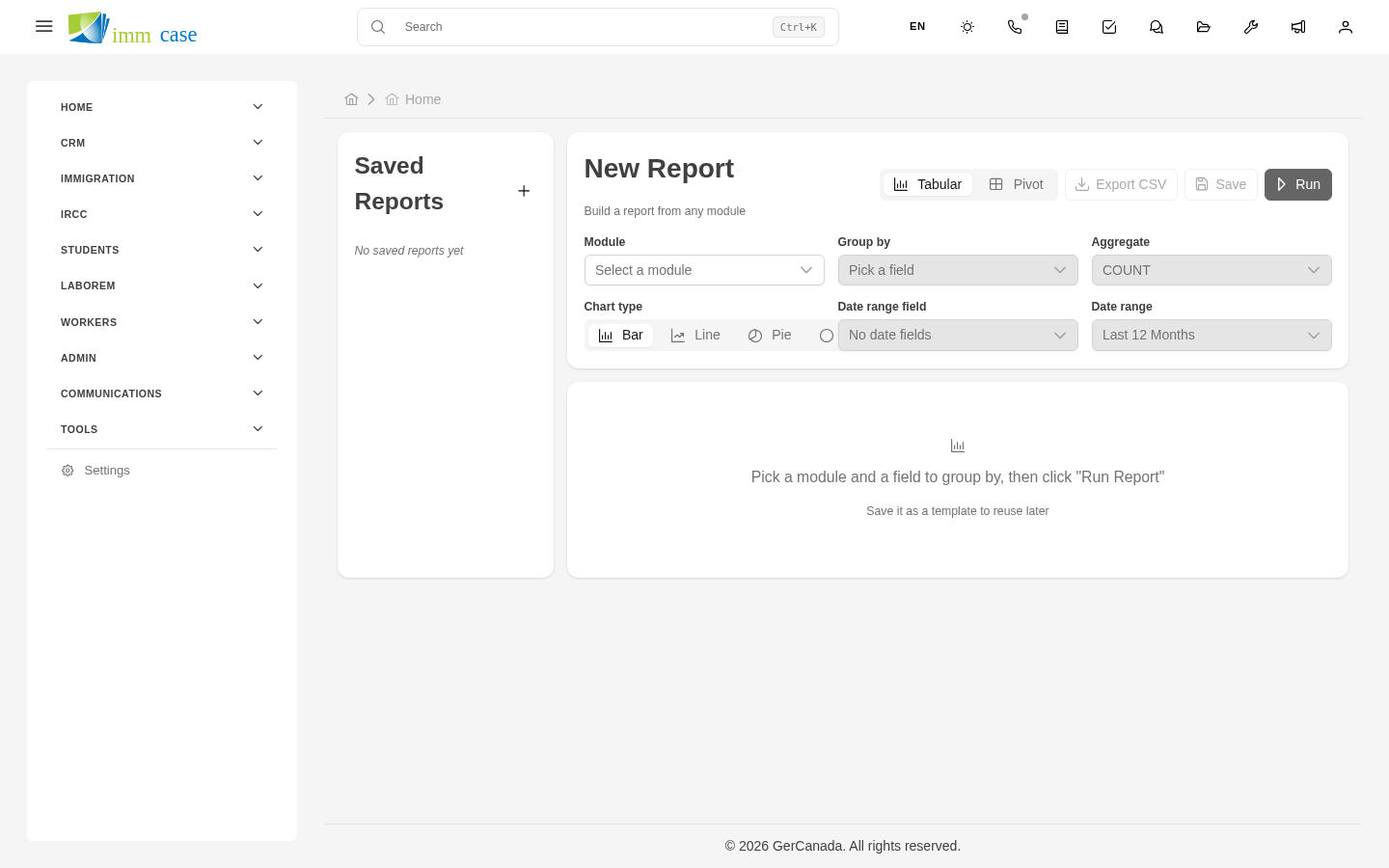
Create a new report
If you have permission (typically senior consultants and administrators):
- Create report button.
- Fill in:
- Name of the report.
- Source module — what data (cases, quotes, invoices, etc.).
- Columns — which fields to show.
- Filters — which records to include (all / by status / by date / by consultant).
- Optional grouping — by consultant, by type, by month.
- Metrics — what to compute (count, sum, average, max).
- Visualization — table only, bar chart, pie chart, timeline.
- Save and run.
The report stays in your personal catalog for reuse. If you mark it as shared, colleagues see it too.
Schedule recurring reports
If you want a report to run automatically and arrive by email every week or month:
- Open the report → menu → Schedule delivery.
- Pick frequency (daily, weekly, monthly) and who to send to.
- Save.
ImmCase runs it automatically and sends the PDF/Excel attached to the email on the defined frequency.
Reports for audit
For cases where you need compliance evidence (RCIC, legal audit):
- Time-stamped reports — execution date and time printed on the PDF.
- Per-user activity report — what each team member did in a period.
- Case change report — modification history.
Your administrator may have configured reports specific to your jurisdiction.
Watch out for
- Reports show data at execution time. If you run "Cases closed this month" on day 1 and again on day 28, results differ because more cases closed in between. Not a bug, that's correct.
- Misconfigured filters mislead. If your collections report excludes cancelled invoices but not partially paid ones, totals may not match what you expected. Verify filters before presenting results.
- Permissions apply. If a junior consultant only sees their own cases, the report they run shows only theirs — not the whole team's. For broad reports, run them as an administrator or ask someone with broad permissions.
Where to next
- Find duplicates — tool for finding duplicate records.
- Dashboards and widgets — live KPI metrics on your dashboard.