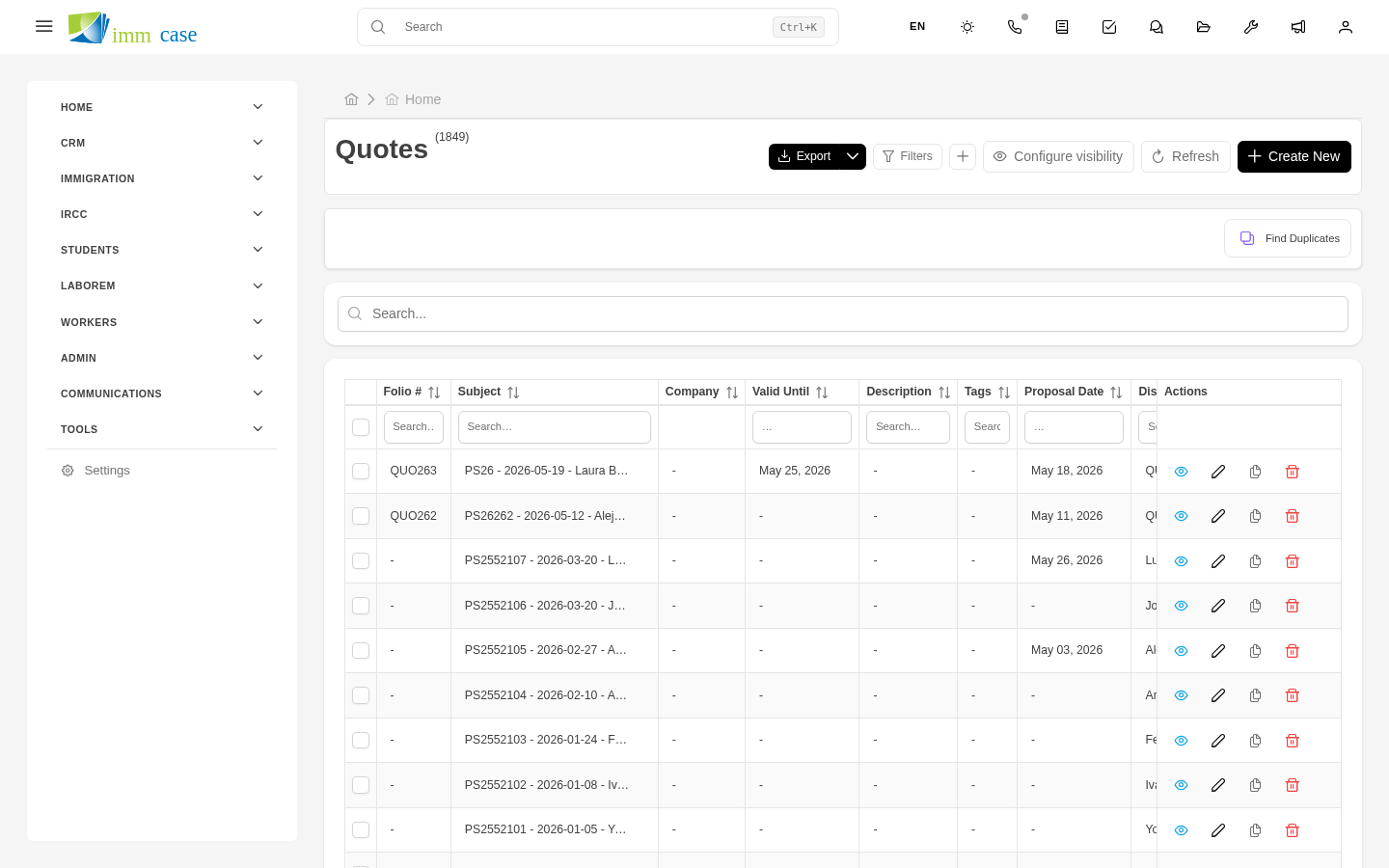
Quotes
Why this matters
A quote is the formal economic offer you send to an applicant or lead: how much your consulting fees cost, what's included, what taxes apply, and when the offer expires. Once accepted, the quote becomes an invoice. Keeping quotes clean and traceable helps close more clients and avoid disagreements about what was agreed.
Create a quote
- Open the applicant or case it applies to → Quotes tab → Create. (Sidebar → Quotes → Create also works; you'll have to pick the applicant and case manually.)
- Fill in the general data:
- Applicant — who it's for.
- Case — which file it relates to (optional but recommended).
- Issue date and Valid until.
- Currency — CAD, USD, MXN, etc.
- Add line items (each service you charge for):
- Select from the Products catalog or type freely.
- Quantity, Unit price, Discount (if any).
- Tax — HST, GST, VAT as appropriate.
- Review the totals (subtotal, discount, taxes, total) at the bottom.
- Fill in Terms and conditions and any notes for the client.
- Save.
The system assigns a folio (for example PRE158).
Quote statuses
The Status field marks where it stands:
- Draft — you're putting it together, not yet sent.
- Sent — it went to the client.
- Accepted — the client approved it.
- Declined — the client rejected it.
- Expired — the validity date passed without a response.
These statuses matter for reports and so your administrator knows how well each consultant converts.
Generate and send the PDF to the client
- Open the quote → PDF or Generate PDF button.
- Pick the template (some practices have several: basic, detailed, with logo, in different languages).
- The PDF downloads or previews.
- To send it by email from inside ImmCase: Send by email button → pick an email template → check the recipient and the message → Send.
The sent email is recorded in the Emails tab of the quote and the applicant. The PDF is saved automatically in the applicant's folder.
Accept a quote
When the client accepts (by email, call, or payment):
- Open the quote → Edit.
- Change Status to Accepted.
- Fill in Acceptance date and Notes if any (acceptance method, amount paid, etc.).
- Save.
Once accepted, don't edit the quote's content (line items, prices). If the scope changes, create a new quote that replaces the previous one and change the old one to Declined with the reason.
Convert quote to invoice
When it's time to bill:
- Open the accepted quote.
- Convert to invoice button (upper-right corner or actions menu).
- ImmCase creates an invoice with the same line items, totals, and data. You confirm the issue date and tax info.
- The invoice stays linked to the original quote — both can be accessed from each other.
More detail in Invoices.
Watch out for
- Don't edit a sent quote. If you changed it after sending, the client sees a different version than what's on your screen. Create a new one and mark the previous as declined.
- The quote folio isn't the date. Don't tell the client "your quote from November 5th" — say "your quote PRE158". Dates get confused when there are multiple versions.
- Expired status doesn't apply automatically. If the validity date passes without a client response, it keeps showing as Sent until you change it to Expired. There are workflows that can do this for you — ask your administrator.
- Taxes vary by province/state. ImmCase applies the tax you have configured as default. If the applicant is in a different jurisdiction, change it manually when building the quote.
Where to next
- Invoices — formally bill once the quote is accepted.
- Line items — understand how a quote or invoice detail is built.