Webphone
Why this matters
The webphone is a phone integrated into ImmCase. It lets you make and receive calls on your practice's landline number from your computer (with microphone and speakers or a headset), without needing a physical handset or using your personal mobile. Every call is logged in the relevant applicant or case, so you don't have to write down who you called or who called you.
It's useful for practices that take many calls: you work from home with your computer, or the whole team shares a line without having to pass the handset.
Set up the webphone
The first time you open the webphone (sidebar → Webphone or a headset icon in the top bar), it asks for browser permissions to use the microphone. Accept.
If you can't hear or aren't heard, check browser permissions and the audio device selection in Webphone settings. In most cases your administrator already configured your SIP account beforehand — all you need is browser permission and an audio test.
Make a call
Three paths:
- Dial manually: open the webphone → type the number (with country code) → green call button.
- Click-to-call from a record: open the applicant → phone icon next to the number → call starts automatically.
- From recent calls list: history → click the contact → call.
Receive a call
When a call comes in to your practice's number:
- ImmCase shows a popup notification with the caller's number.
- If the number is registered in ImmCase (associated with an applicant or company), it shows you whose it is.
- Accept (green button) or Decline (red).
If you accept, the call connects and the call record starts (not the audio, unless that feature is enabled — ask your administrator).
During the call
While talking you can:
- Mute your microphone (button with strikethrough mic icon).
- Hold the client with hold music.
- Transfer the call to another colleague.
- Send DTMF tones (for client IVR systems).
- Take notes in the applicant's record in another tab — the call continues.
End the call
Red hang-up button. ImmCase automatically saves:
- Call duration.
- Start time.
- Whether it was incoming or outgoing.
- Who handled it (you).
- Which applicant or case it was linked to (if applicable).
After hanging up, ImmCase optionally asks you to add a summary of the call (what was discussed, decisions made, next steps). Take 30 seconds to fill it in — your future self will thank you.
Call history
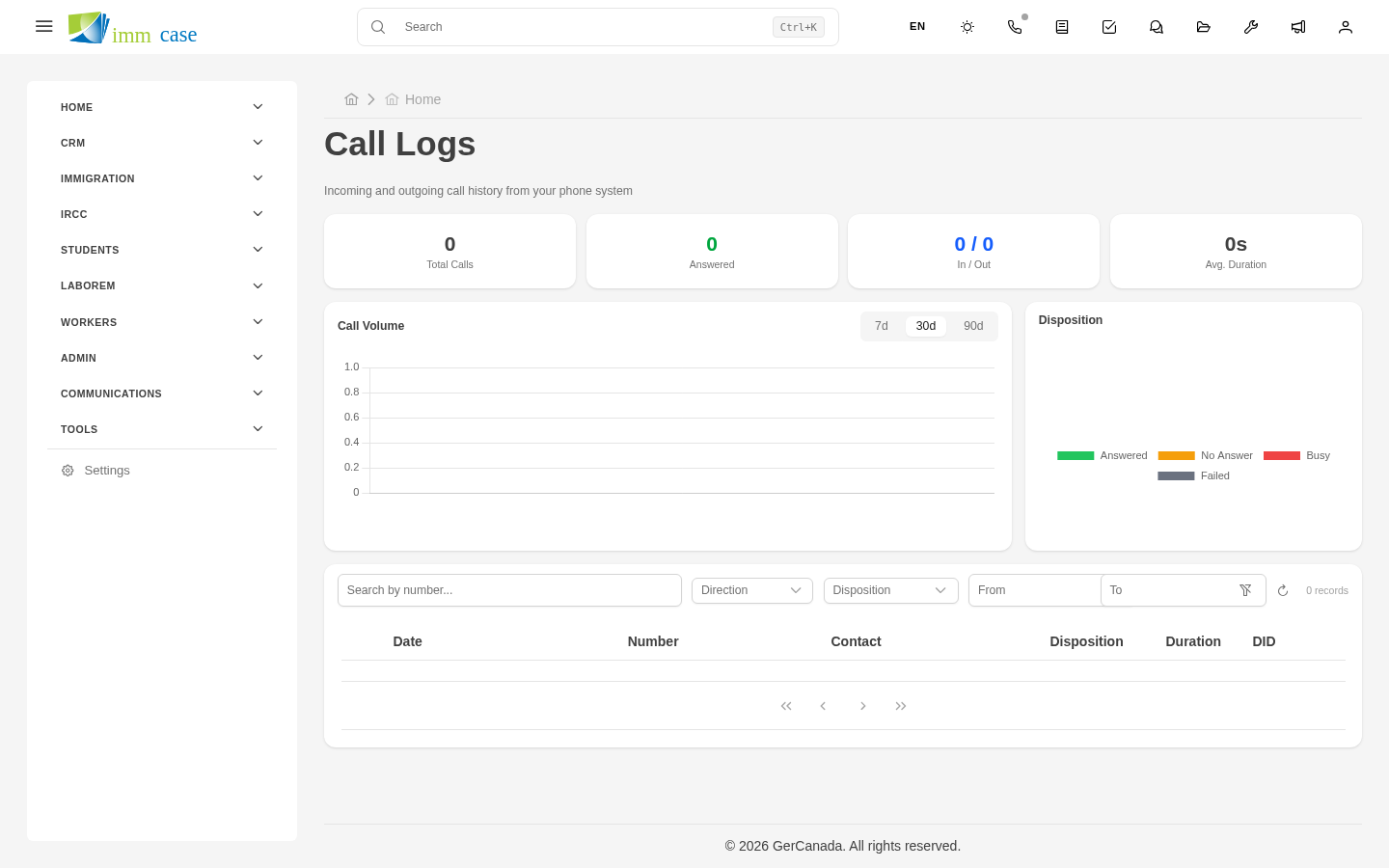
Calls tab inside the Webphone module, or Calls tab on each applicant/case. Shows:
- Who called, who they called, when.
- Duration.
- Status (answered, missed, busy).
- Summary, if filled in.
- Recording (if enabled).
Watch out for
- The webphone uses the Internet, not the phone network. If your connection is slow, the call will cut or echo. For critical calls (IRCC interviews, long meetings), consider mobile as backup.
- Don't forget to disable the mic when done. Some browsers keep the permission active even after closing the tab, which drains battery on laptops.
- Don't record without notice. In most jurisdictions (Canada, Mexico) you must inform the client the call is being recorded if you're going to save audio. It's illegal to record without consent from at least one party. Ask your administrator what your practice's configuration is.
Where to next
- Video calls — meetings with video instead of audio only.
- SMS — text messages to the applicant's phone.