PDF templates
Why this matters
A PDF template is a pre-built document that ImmCase fills automatically with applicant, case, quote, or invoice data, generating a PDF ready to print, sign, or send. Templates are the engine that produces quotes, invoices, representation letters, receipts, certifications, paystubs, and T4s — without you having to rewrite anything.
This page covers how to use existing templates. Template creation is covered in PDF templates (creation) in Part 6.
Generate a PDF from a template
From any record that has templates associated (applicant, case, quote, invoice, etc.):
- Open the record.
- PDF or Generate PDF button (in the top bar of the detail or in the actions menu).
- If there are several templates, pick which to use.
- ImmCase opens the PDF preview.
- Download, print, or Send by email directly from the preview.
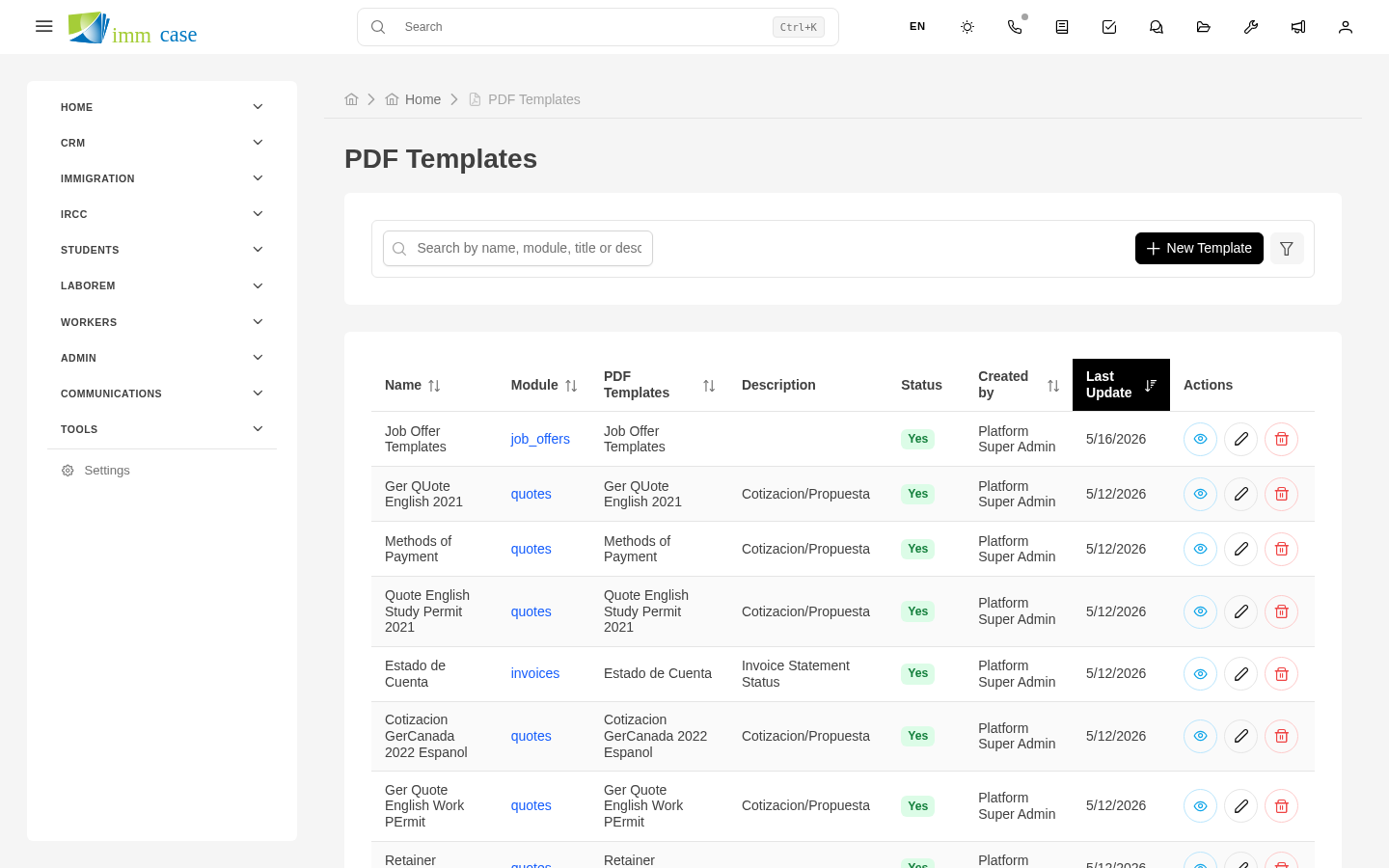
Typically available templates
Depends on how your practice built the catalog, but the most common:
- Quote — the PDF you send to the client with the offer.
- Invoice — the fiscal billing document.
- Representation letter — for the client to sign authorizing you before IRCC.
- Payment receipt — when receiving a payment, generate a proof.
- Case summary — to send the client a current status.
- IRCC package — combining several documents into one.
Templates in different languages
If your practice serves francophone and anglophone clients, there's usually one template per language:
- "Presupuesto ES", "Quote EN", "Devis FR".
When generating, pick the one matching the client's language. Some configurations auto-pick the applicant's preferred-language template.
Variables and data
Templates use variables ({applicant_name}, {case_folio}, {quote_total}, etc.) that ImmCase replaces with real record data. When you generate a quote PDF, line items, totals, and taxes come from the quote you're looking at.
If a variable isn't substituted (stays as {something} in the final PDF), tell your administrator — the template has an error.
Save the generated PDF
When ImmCase generates the PDF, it's automatically saved in the relevant applicant's folder. You can download locally or leave it just on the system. To send to the client, you don't need to download — use Send by email from the preview.
Customize before generating (when supported)
Some templates allow tweaking parameters before generating:
- Language of the PDF.
- Specific template (if your practice has several for the same document type — "Basic invoice" vs "Detailed invoice").
- Optional data — include or exclude certain fields.
These options appear as a dialog before generation.
Watch out for
- Don't edit the generated PDF directly. If you notice that some data is wrong, don't open the PDF and fix it by hand — correct the data in the source record (the applicant, the quote, etc.) and regenerate the PDF. Editing the PDF leaves the system with different data than the document.
- Templates are point-in-time at generation. If a month from now you change the template's content and regenerate the same quote's PDF, it comes out different. Generated PDFs are snapshots; they don't regenerate themselves.
- Verify the record data is complete. If you generate a quote without having captured the client's tax ID, the PDF comes out without a tax ID. Better to check before than to send and correct after.
Where to next
- eForms — official IMM forms (different from PDF templates).
- In Part 6 (Administration), how to create templates with tokens, BLOCK_DATA, and custom CSS.