Menu editor
Why this matters
The menu editor lets you customize what appears in the sidebar and in what order — and, optionally, differently per role. Useful when:
- You want the most-used modules at the top.
- Your collections team only needs to see Invoices and Payments, not the full menu.
- You want to hide admin modules from non-admin users.
- You want to add shortcuts to external pages (client website, intranet).
Get to the editor
Sidebar → Settings → Menu editor.
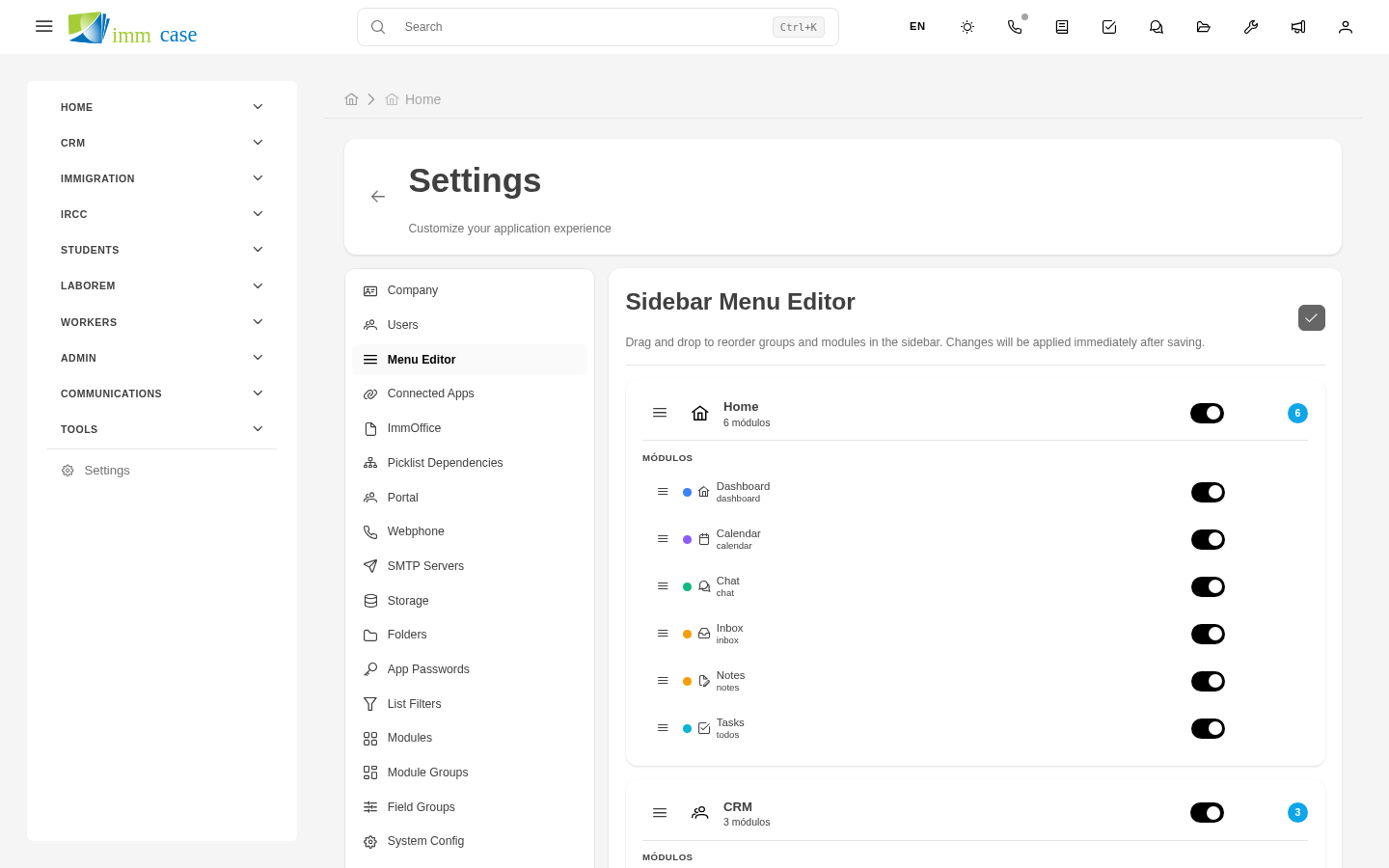
You see the current menu structure with groups and modules. You can edit or create new structures per role.
Basic operations
- Reorder — drag groups or modules up/down to change order.
- Hide — click the eye icon so a module doesn't appear (only in this menu; the module still exists).
- Change group — drag a module from one group to another.
- Rename label — change the visible text without changing the technical key.
- Create new group — to organize related modules.
Per-role menus
Each role can have its own menu. By default, everyone uses the base menu, but you can create variants:
- Menu editor → Create menu for role → pick role.
- Adjust what appears (hide, reorganize, add).
- Save.
When a user with that role signs in, they see the menu configured for their role. Useful for hiding complexity from users who don't need it.
External shortcuts
You can add to the menu shortcuts for:
- External URLs — open in new tab (client website, external tool, intranet).
-
Custom internal pages — if your practice has custom pages inside ImmCase.
-
Add Shortcut.
- Type: external URL or internal page.
- Link text, icon, URL.
Watch out for
- Don't hide modules for security. The menu editor only affects visibility — not permissions. If a user knows the direct URL of a "hidden" module, they can reach it. To really restrict, use role/profile permissions.
- Per-role menus can diverge a lot. If you have 8 roles with 8 different menus, keeping them in sync after any change becomes labor-intensive. Keep divergence to a minimum.
- Don't add too many shortcuts. The menu loses focus with 20 external links. 2-3 critical ones is reasonable.
Where to next
- SMTP configuration — next in system configuration.
- Roles — what per-role menus are configured against.